> ## Documentation Index
> Fetch the complete documentation index at: https://trybloom.co.uk/docs/llms.txt
> Use this file to discover all available pages before exploring further.
# Calendar
> Your mission control - organise your week, find your clients, and ditch the paper diary.
The calendar is the bread and butter of Bloom. It's your mission control, where you'll come to organise your week, find your clients, and save yourself scribbling notes in a paper diary.
## At a glance
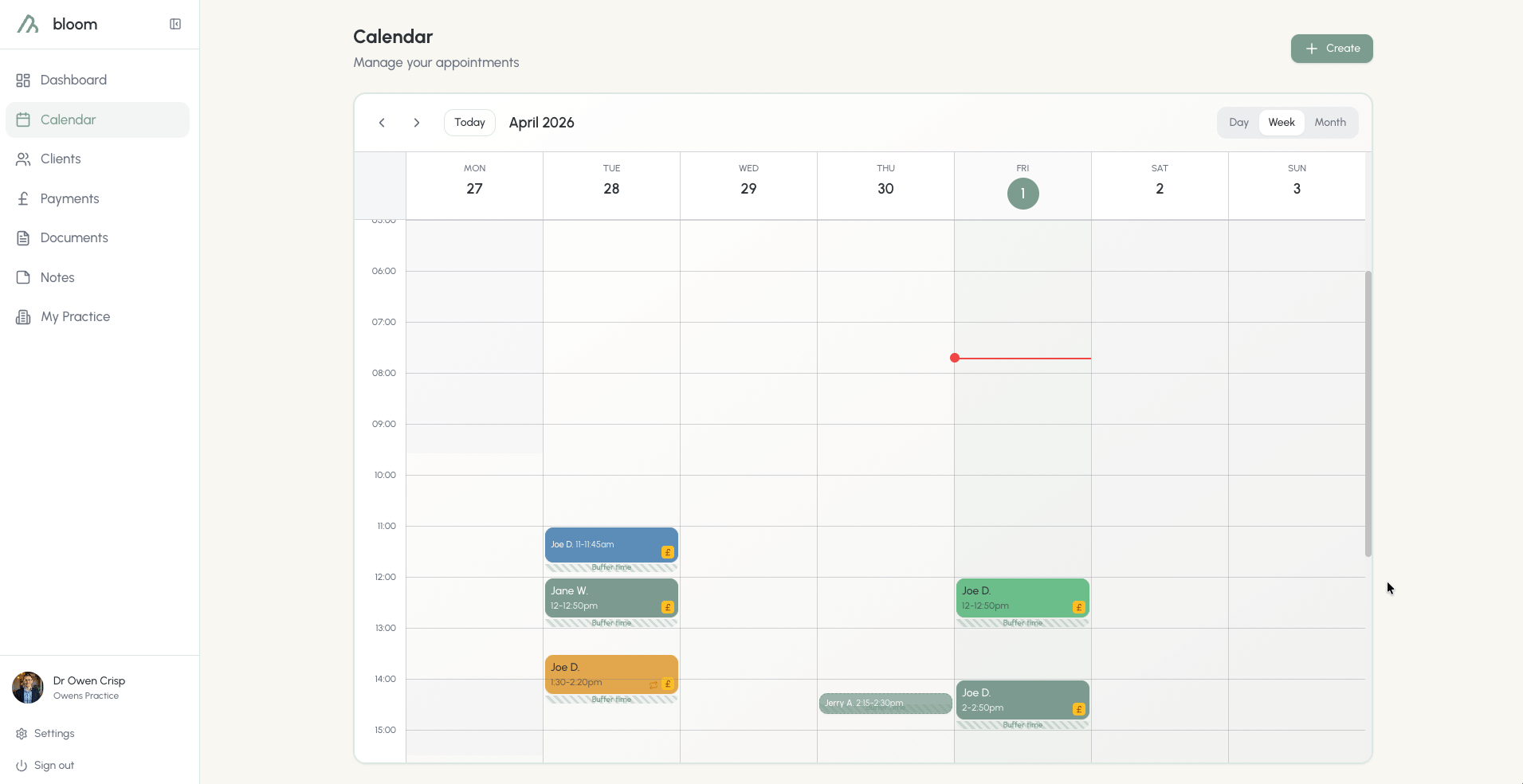
Once you're set up and ready, scheduling sessions has never been easier. You'll see booked sessions begin to populate your week, dictated by the time and buffer time you set.
In addition, any consultation sessions will be automatically pinned in the calendar alongside your other scheduled sessions. Consultation sessions do not have a buffer time.
When creating your default sessions, we'd recommend that for different types of sessions, a different colour is used; to help give you a clear distinction between the different session types. In our example below, we're using two shades of green to distinguish between sessions with two different price points (in person and online).
 ## Client quick view
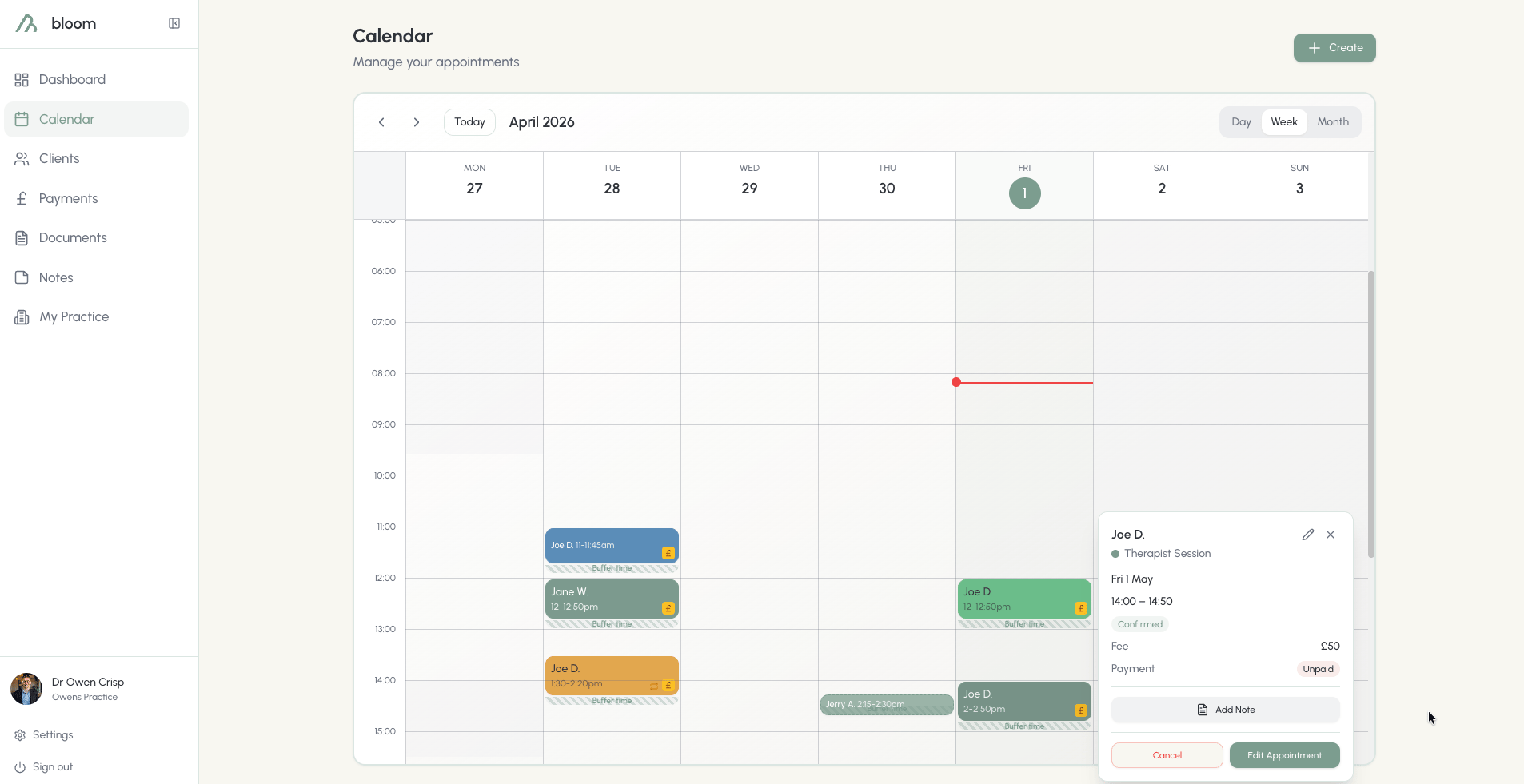
Clicking on each appointment will open the door to the client's quick view, allowing you to see the following information:
## Client quick view
Clicking on each appointment will open the door to the client's quick view, allowing you to see the following information:
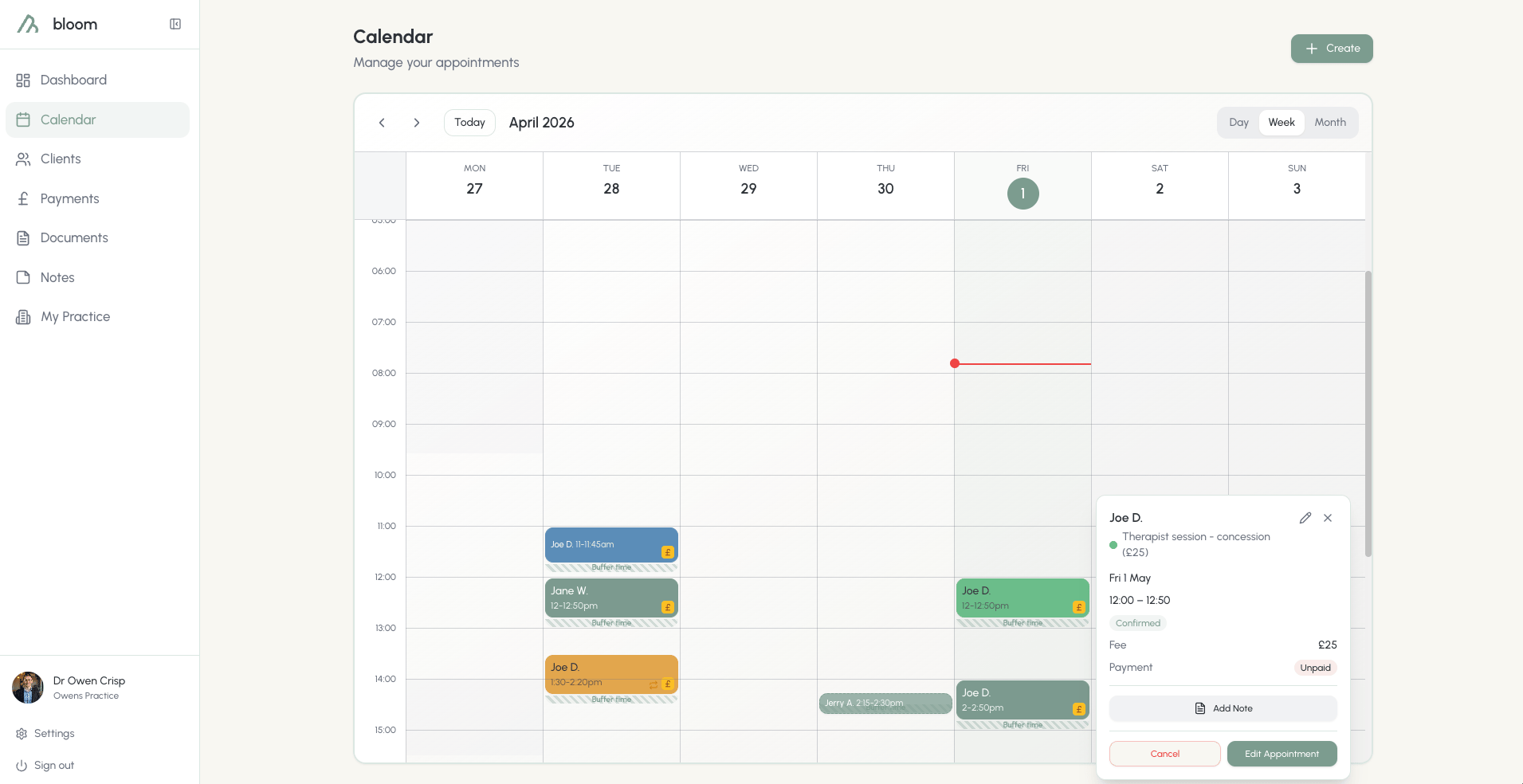 * Who is booked into the session
* What type of session they have, and their fee
* Whether or not the session has been paid for
In addition to the quick view, you're also given the following options:
* Add client notes directly, saving you from finding the client in your roster to add notes.
* Edit the session duration, to the minute. Alternatively, you can simply drag the session to another timeslot to automatically reschedule.
* Who is booked into the session
* What type of session they have, and their fee
* Whether or not the session has been paid for
In addition to the quick view, you're also given the following options:
* Add client notes directly, saving you from finding the client in your roster to add notes.
* Edit the session duration, to the minute. Alternatively, you can simply drag the session to another timeslot to automatically reschedule.
 ## Scheduling sessions
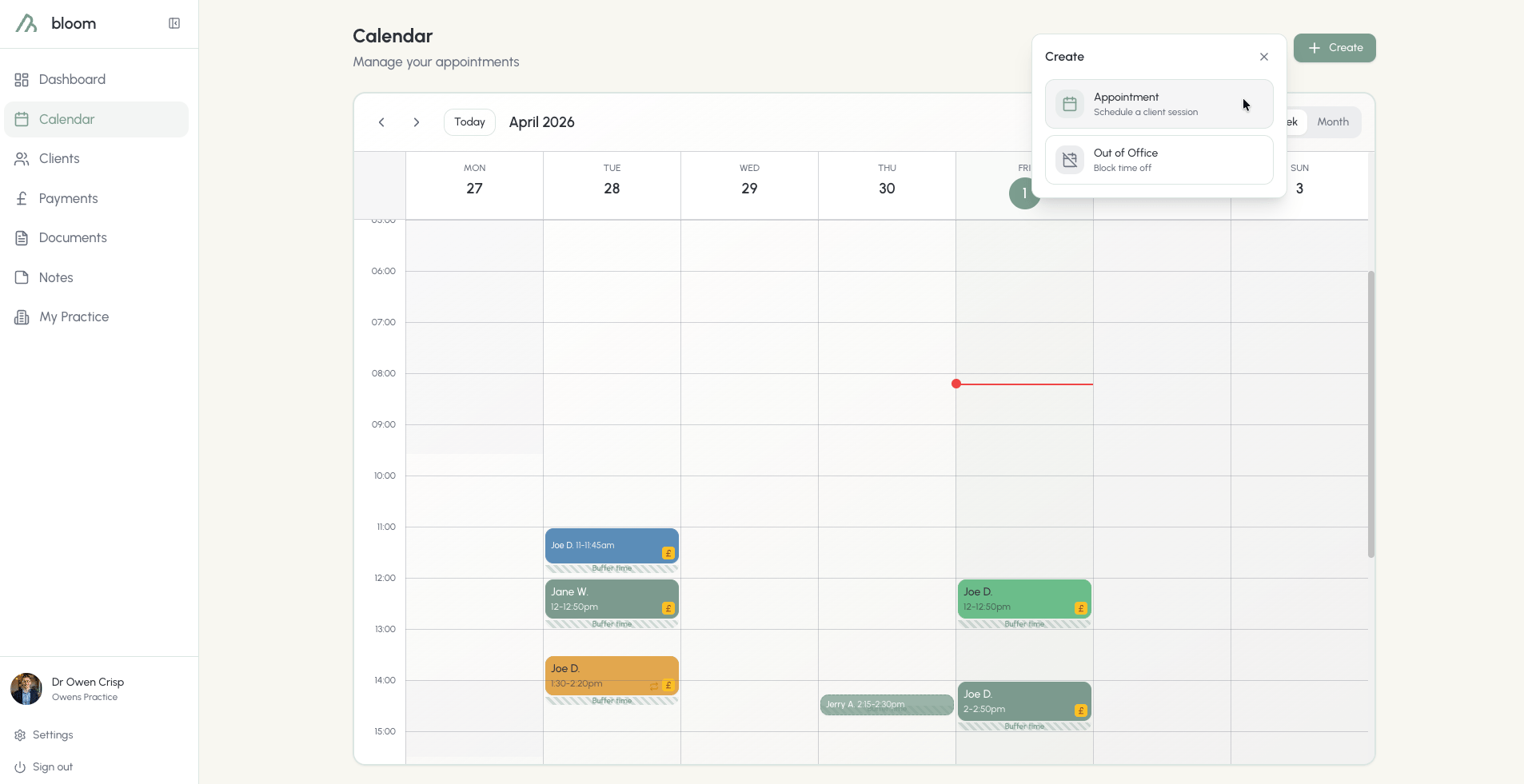
Scheduling sessions takes but 30 seconds. In the calendar, you can schedule single or recurring sessions or set your OOO (Out of Office) timings.
## Scheduling sessions
Scheduling sessions takes but 30 seconds. In the calendar, you can schedule single or recurring sessions or set your OOO (Out of Office) timings.
 ### New sessions
When clicking on **Appointment**, the default will be a custom session time. While we understand that you might have a set block of session types, we also give you the flexibility to schedule a session outside of your regulars.
New appointments can also be scheduled by clicking on the calendar in an empty space and selecting **new appointment**.
### Pre-defined session types
If you're a creature of habit and never stray from your typical session bookings, your pre-defined session types are here and ready to go. These are the sessions you created in the settings tab, as you build your practice:
### New sessions
When clicking on **Appointment**, the default will be a custom session time. While we understand that you might have a set block of session types, we also give you the flexibility to schedule a session outside of your regulars.
New appointments can also be scheduled by clicking on the calendar in an empty space and selecting **new appointment**.
### Pre-defined session types
If you're a creature of habit and never stray from your typical session bookings, your pre-defined session types are here and ready to go. These are the sessions you created in the settings tab, as you build your practice:
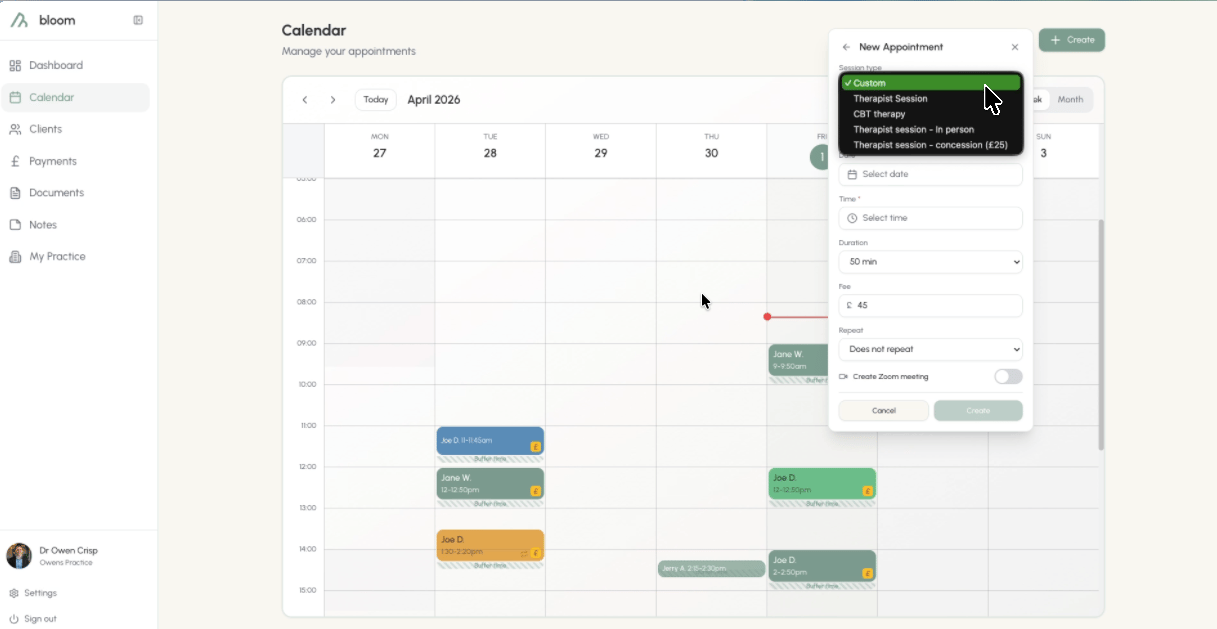 This will automatically apply to the previously set rates and times. These can still be edited here, should you choose, and can be done by simply typing in each box and overwriting its default value. If you overwrite these values, they will apply only to the sessions you schedule, not to the session type overall. For example, you might choose to take £5 off for the 6 sessions you schedule.
Clients must be pre-registered inside the system before you can schedule any further appointments.
### Recurring sessions
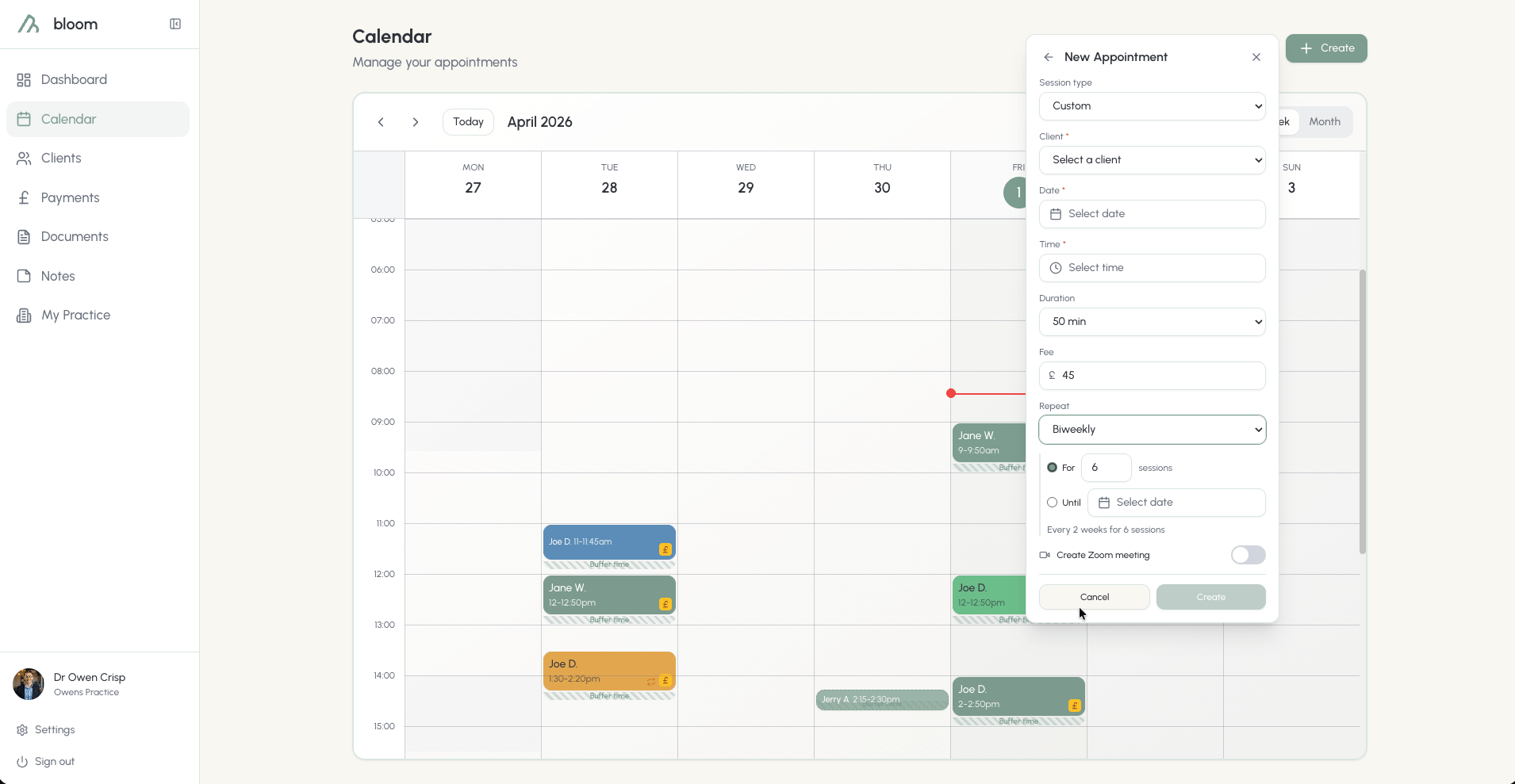
Sessions can be set to recur **weekly, biweekly, or monthly**. This can be done for a set number of sessions or until a certain date.
This will automatically apply to the previously set rates and times. These can still be edited here, should you choose, and can be done by simply typing in each box and overwriting its default value. If you overwrite these values, they will apply only to the sessions you schedule, not to the session type overall. For example, you might choose to take £5 off for the 6 sessions you schedule.
Clients must be pre-registered inside the system before you can schedule any further appointments.
### Recurring sessions
Sessions can be set to recur **weekly, biweekly, or monthly**. This can be done for a set number of sessions or until a certain date.
 ### Altering sessions
Sessions can easily be moved around by time or date. There are a few ways to do this:
Need an extra 15 minutes to get to the post office before it closes, or pick the kids up from an after-school club? The easiest way to reschedule a session is to simply drag it in the calendar. Dragging sessions lets you reschedule in 15-minute blocks.
For better granularity, open the client's quick view and click the pencil icon or **edit appointment** button - this will allow you to fine-tune the session times.
To change the date of a session beyond the current week, the session will need to be cancelled and rescheduled.
When you reschedule a session, the client will be automatically notified via email.
### Cancelling sessions
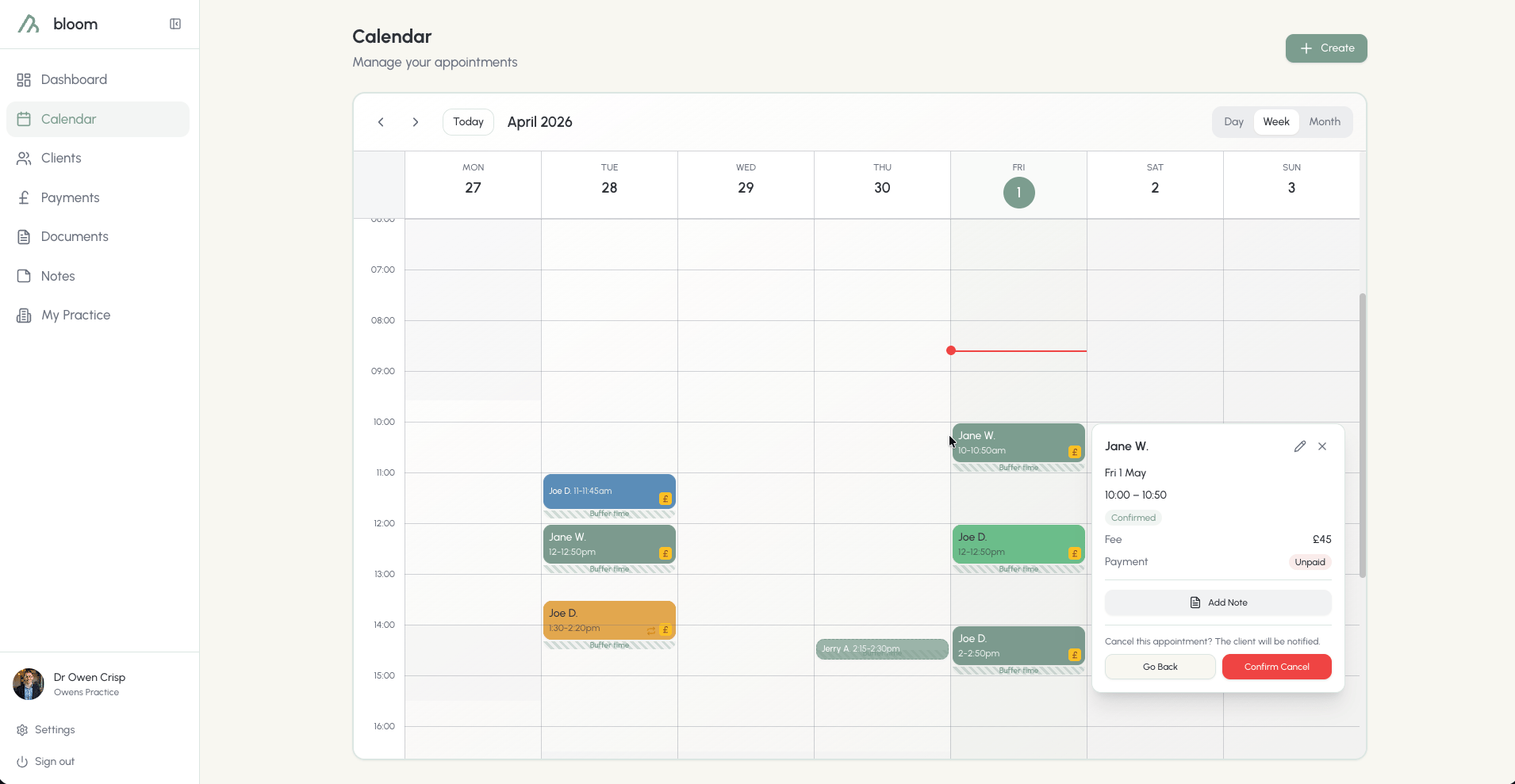
Cancelling sessions is as easy as scheduling them. In the client's quick view, click **cancel**.
When you attempt to cancel a session, the calendar will ask again to ensure it's not deleted accidentally.
As with rescheduling, cancelling a session will automatically notify the client via email.
If the client pays by card, the cancel confirmation does the money-work for you: late cancellations offer to charge your cancellation fee to the saved card, and sessions that were already paid are refunded to the client automatically. See [Card payments](/docs/card-payments#cancellations-no-shows-and-refunds) for the rules.
### Altering sessions
Sessions can easily be moved around by time or date. There are a few ways to do this:
Need an extra 15 minutes to get to the post office before it closes, or pick the kids up from an after-school club? The easiest way to reschedule a session is to simply drag it in the calendar. Dragging sessions lets you reschedule in 15-minute blocks.
For better granularity, open the client's quick view and click the pencil icon or **edit appointment** button - this will allow you to fine-tune the session times.
To change the date of a session beyond the current week, the session will need to be cancelled and rescheduled.
When you reschedule a session, the client will be automatically notified via email.
### Cancelling sessions
Cancelling sessions is as easy as scheduling them. In the client's quick view, click **cancel**.
When you attempt to cancel a session, the calendar will ask again to ensure it's not deleted accidentally.
As with rescheduling, cancelling a session will automatically notify the client via email.
If the client pays by card, the cancel confirmation does the money-work for you: late cancellations offer to charge your cancellation fee to the saved card, and sessions that were already paid are refunded to the client automatically. See [Card payments](/docs/card-payments#cancellations-no-shows-and-refunds) for the rules.
 ## Out of Office
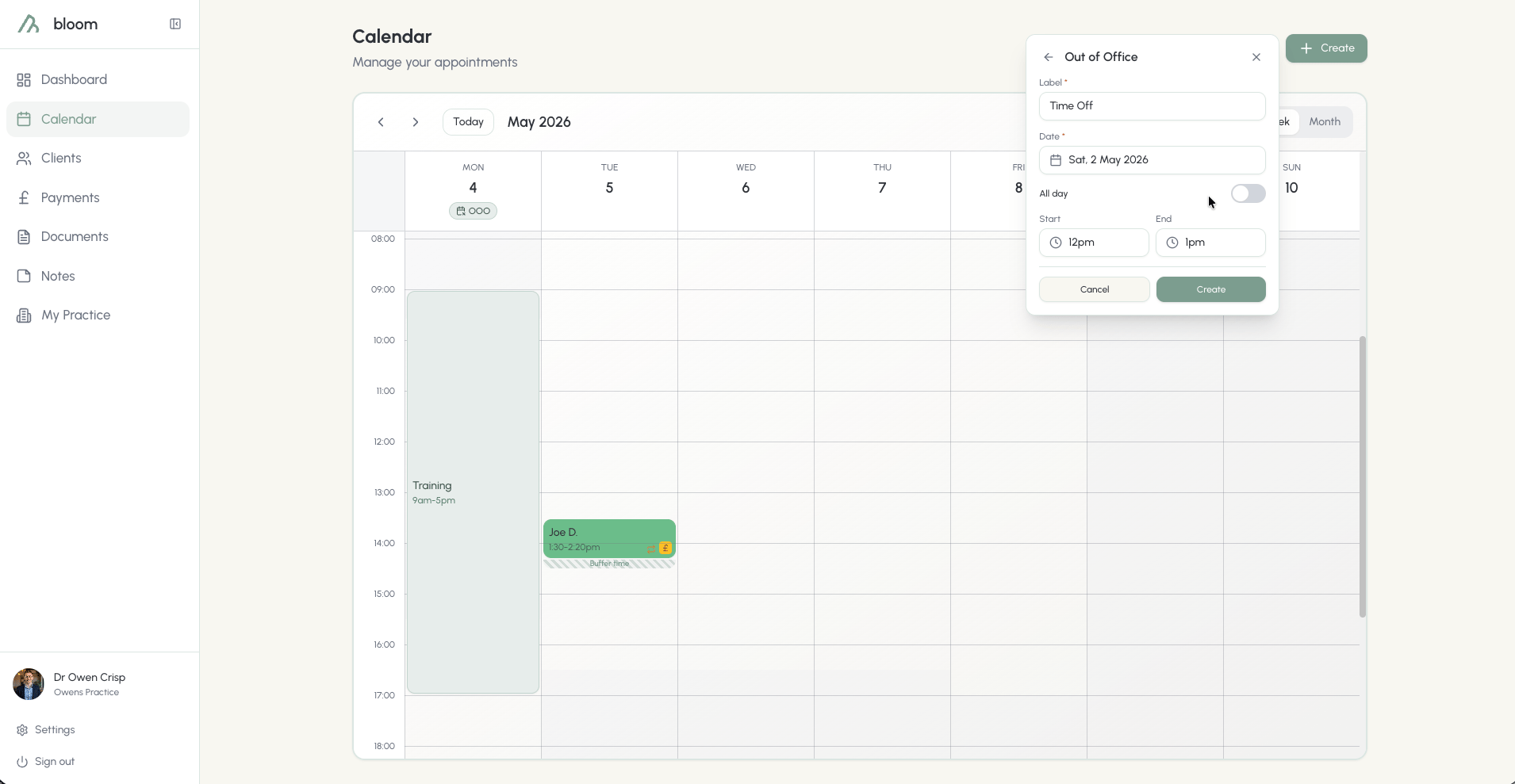
If you're looking to book OOO, it can be scheduled easily in the Calendar. OOO time will appear as a time block in the calendar and can be scheduled for whole days or specific time periods.
If you choose all day, OOO will honour your set working hours.
Currently, OOO time needs to be scheduled in 1-day increments.
## Out of Office
If you're looking to book OOO, it can be scheduled easily in the Calendar. OOO time will appear as a time block in the calendar and can be scheduled for whole days or specific time periods.
If you choose all day, OOO will honour your set working hours.
Currently, OOO time needs to be scheduled in 1-day increments.
 ### No shows
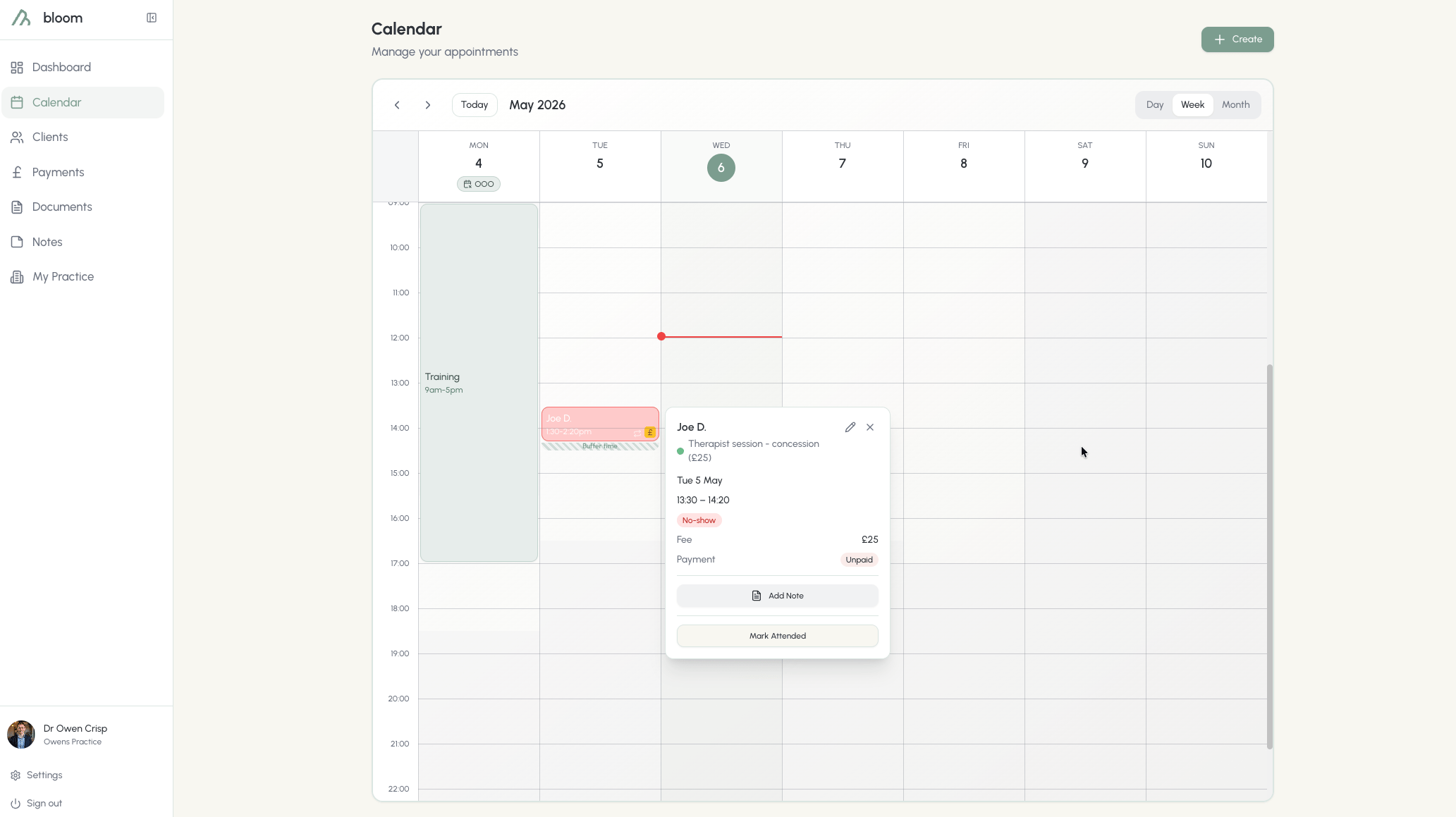
Marking no-shows creates an important note on a client profile, allowing you to easily track where you're leaking time and session capacity. In the event a client no-shows, click on the appointment once it has finished in your calendar and mark it as a no-show.
Marking as a no-show will turn the appointment red automatically.
For card clients, marking a no-show offers to charge the full session fee to their saved card - untick the box to be lenient and the fee is waived instead.
### No shows
Marking no-shows creates an important note on a client profile, allowing you to easily track where you're leaking time and session capacity. In the event a client no-shows, click on the appointment once it has finished in your calendar and mark it as a no-show.
Marking as a no-show will turn the appointment red automatically.
For card clients, marking a no-show offers to charge the full session fee to their saved card - untick the box to be lenient and the fee is waived instead.