> ## Documentation Index
> Fetch the complete documentation index at: https://trybloom.co.uk/docs/llms.txt
> Use this file to discover all available pages before exploring further.
# Payments
> Track every session fee in one place - what's paid, what's owed, and what Bloom is collecting for you.
The **Payments** page is your money view: every billable session, its status, and the actions to settle it. Whether Bloom is charging cards for you or you're recording bank transfers by hand, this is where you keep on top of it.
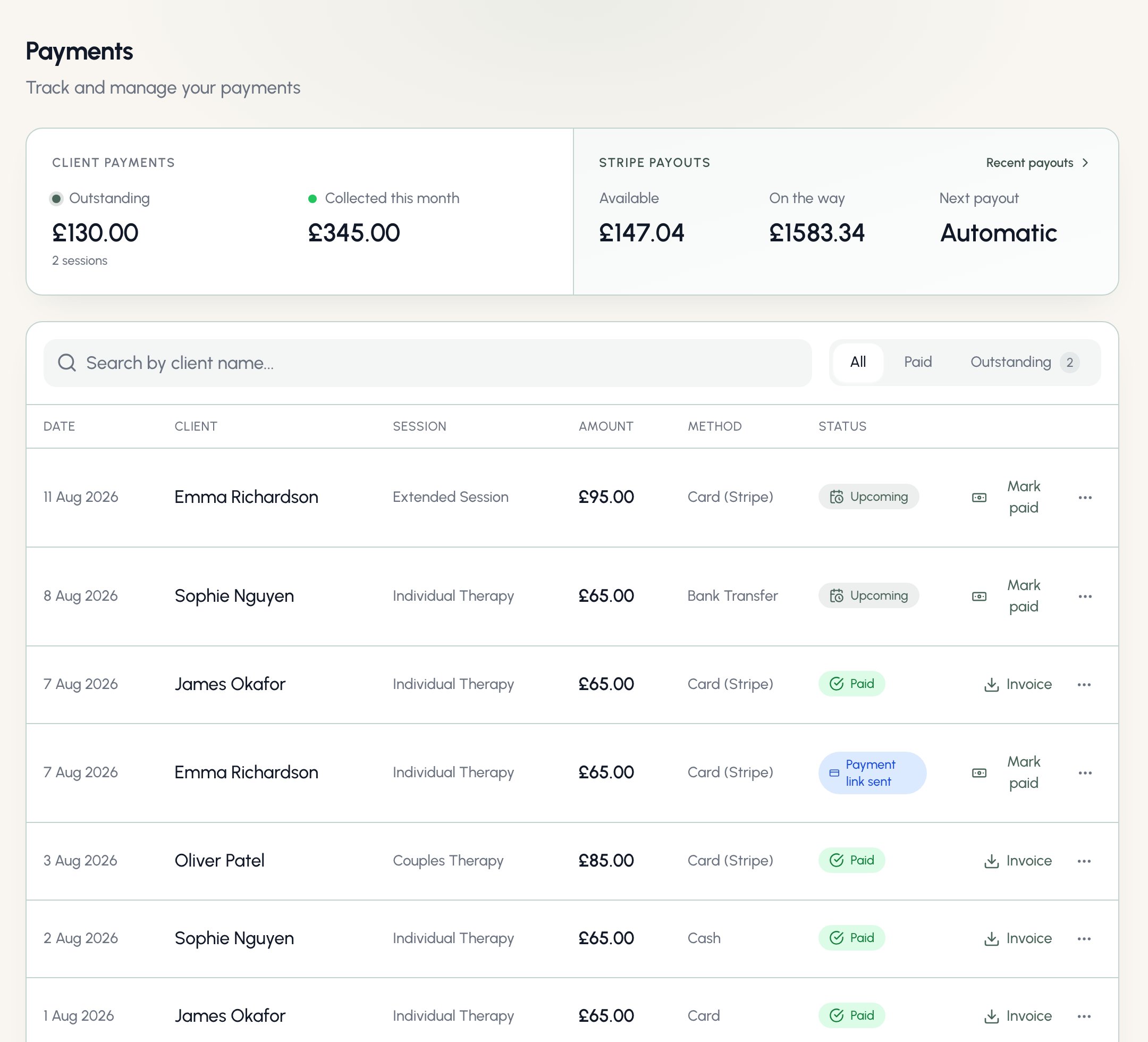 At the top you'll see what's outstanding across all sessions and what you've collected this month. Use the tabs to filter to **Paid** or **Outstanding**, and the search to find a client.
If you're the practice owner and Stripe is connected, a **Stripe Payouts** panel also appears beside your client figures: your available balance, what's on its way to your bank, and your next payout date, with the recent payouts list and a Stripe dashboard link behind **Recent payouts**. Team members never see practice-level money - their view stays scoped to their own clients.
## Payment statuses
| Status | What it means |
| ------------------------- | ------------------------------------------------------------------------------------------------------------------------------------- |
| **Upcoming** | A future session, not yet due. |
| **Auto-charge scheduled** | A future session for a client whose card is charged before the session - Bloom will collect it 24 hours beforehand. |
| **Payment link sent** | The client has been emailed a secure Stripe link for this session. |
| **Charge failed** | The client's card was declined and automatic retries have finished. The client has a payment link; you can also **Retry charge now**. |
| **Outstanding** | The session has happened and payment hasn't been recorded yet. |
| **Paid** | Settled - by card, bank transfer, or cash. |
| **Refunded** | A card payment was returned to the client, so the fee is open again. |
| **Waived** | You chose not to charge for this session. |
The **Method** column shows how each session was - or will be - paid: **Card (Stripe)**, **Cash**, or **Bank Transfer**. Settled sessions show how the money actually arrived; unpaid ones show how collection will happen based on the client's payment method.
## Recording a payment yourself
For bank transfer and cash clients, click **Mark paid** when the money arrives, choose how it was paid, and Bloom sends the client a receipt with the paid invoice attached. Card payments record themselves - never mark a card client paid by hand unless they genuinely paid another way, in which case Bloom stops any pending card collection for that session.
If a client pays a link for a session you'd already marked paid, Bloom refunds the duplicate automatically and lets you know - nobody is ever charged twice.
## Reminders and invoices
Unpaid sessions chase themselves gently:
* The day-before session reminder tells card clients their card will be charged, link clients how to pay, and bank-transfer clients where to send the money.
* The day after an unpaid session, a payment reminder goes out with the invoice attached - and a payment link for clients on a card or link method.
* Need to nudge sooner? Use **Send reminder** (or **Resend payment link**) from the row's menu.
Invoices are numbered, regenerated on demand from the row's menu, and become receipts once paid. If a client has [billing details](/docs/clients#billing-details) set, payment emails go to their billing contact instead.
## Refunds
For card payments, choose **Refund payment** from the row's menu - full or partial, back to the same card, with a confirmation before anything moves. The row flips to **Refunded** once Stripe confirms it. Refunds for cancelled pre-paid sessions happen [automatically](/docs/card-payments#cancellations-no-shows-and-refunds).
Manual payments keep the existing **Void** action instead - nothing moves in the real world; Bloom just reopens the fee.
## When clients pay a link
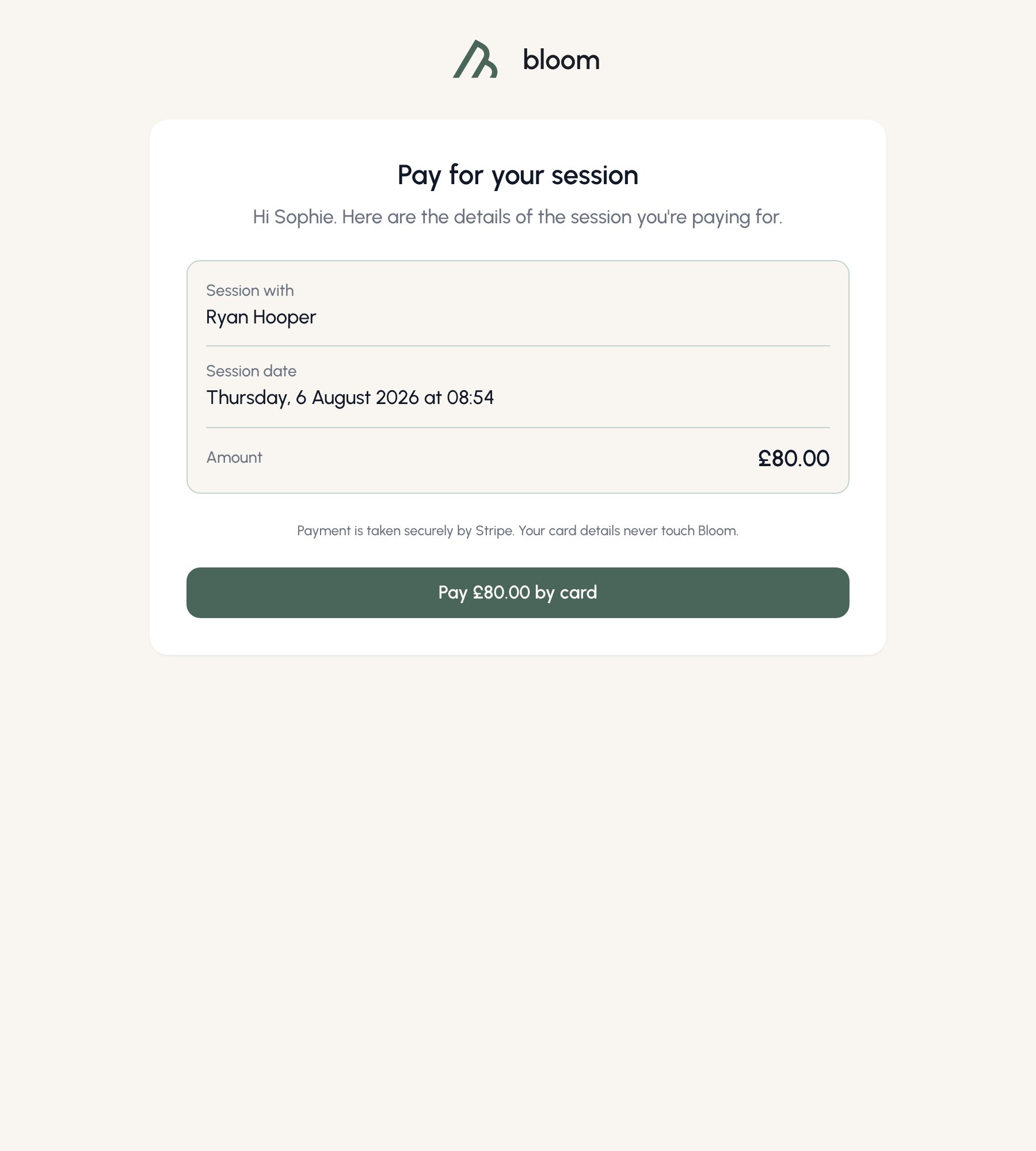
Payment links open a simple page showing the session, the amount, and a **Pay by card** button that hands the client to Stripe's secure checkout - Bloom never sees their card details.
At the top you'll see what's outstanding across all sessions and what you've collected this month. Use the tabs to filter to **Paid** or **Outstanding**, and the search to find a client.
If you're the practice owner and Stripe is connected, a **Stripe Payouts** panel also appears beside your client figures: your available balance, what's on its way to your bank, and your next payout date, with the recent payouts list and a Stripe dashboard link behind **Recent payouts**. Team members never see practice-level money - their view stays scoped to their own clients.
## Payment statuses
| Status | What it means |
| ------------------------- | ------------------------------------------------------------------------------------------------------------------------------------- |
| **Upcoming** | A future session, not yet due. |
| **Auto-charge scheduled** | A future session for a client whose card is charged before the session - Bloom will collect it 24 hours beforehand. |
| **Payment link sent** | The client has been emailed a secure Stripe link for this session. |
| **Charge failed** | The client's card was declined and automatic retries have finished. The client has a payment link; you can also **Retry charge now**. |
| **Outstanding** | The session has happened and payment hasn't been recorded yet. |
| **Paid** | Settled - by card, bank transfer, or cash. |
| **Refunded** | A card payment was returned to the client, so the fee is open again. |
| **Waived** | You chose not to charge for this session. |
The **Method** column shows how each session was - or will be - paid: **Card (Stripe)**, **Cash**, or **Bank Transfer**. Settled sessions show how the money actually arrived; unpaid ones show how collection will happen based on the client's payment method.
## Recording a payment yourself
For bank transfer and cash clients, click **Mark paid** when the money arrives, choose how it was paid, and Bloom sends the client a receipt with the paid invoice attached. Card payments record themselves - never mark a card client paid by hand unless they genuinely paid another way, in which case Bloom stops any pending card collection for that session.
If a client pays a link for a session you'd already marked paid, Bloom refunds the duplicate automatically and lets you know - nobody is ever charged twice.
## Reminders and invoices
Unpaid sessions chase themselves gently:
* The day-before session reminder tells card clients their card will be charged, link clients how to pay, and bank-transfer clients where to send the money.
* The day after an unpaid session, a payment reminder goes out with the invoice attached - and a payment link for clients on a card or link method.
* Need to nudge sooner? Use **Send reminder** (or **Resend payment link**) from the row's menu.
Invoices are numbered, regenerated on demand from the row's menu, and become receipts once paid. If a client has [billing details](/docs/clients#billing-details) set, payment emails go to their billing contact instead.
## Refunds
For card payments, choose **Refund payment** from the row's menu - full or partial, back to the same card, with a confirmation before anything moves. The row flips to **Refunded** once Stripe confirms it. Refunds for cancelled pre-paid sessions happen [automatically](/docs/card-payments#cancellations-no-shows-and-refunds).
Manual payments keep the existing **Void** action instead - nothing moves in the real world; Bloom just reopens the fee.
## When clients pay a link
Payment links open a simple page showing the session, the amount, and a **Pay by card** button that hands the client to Stripe's secure checkout - Bloom never sees their card details.
 Everything about connecting Stripe, saved cards and automatic charging lives in [Card payments](/docs/card-payments).