> ## Documentation Index
> Fetch the complete documentation index at: https://trybloom.co.uk/docs/llms.txt
> Use this file to discover all available pages before exploring further.
# Settings
> Customise everything to do with your practice, from working hours to buffer time.
Here on the settings page is where you'll customise everything to do with your practice. From your working hours, your practice name, or your buffer time - it's all here for you in one section. In this post, we'll cover the setup from top to bottom. Done right, this should take 10 minutes to complete, and once it's done, you're ready to go.
## Profile
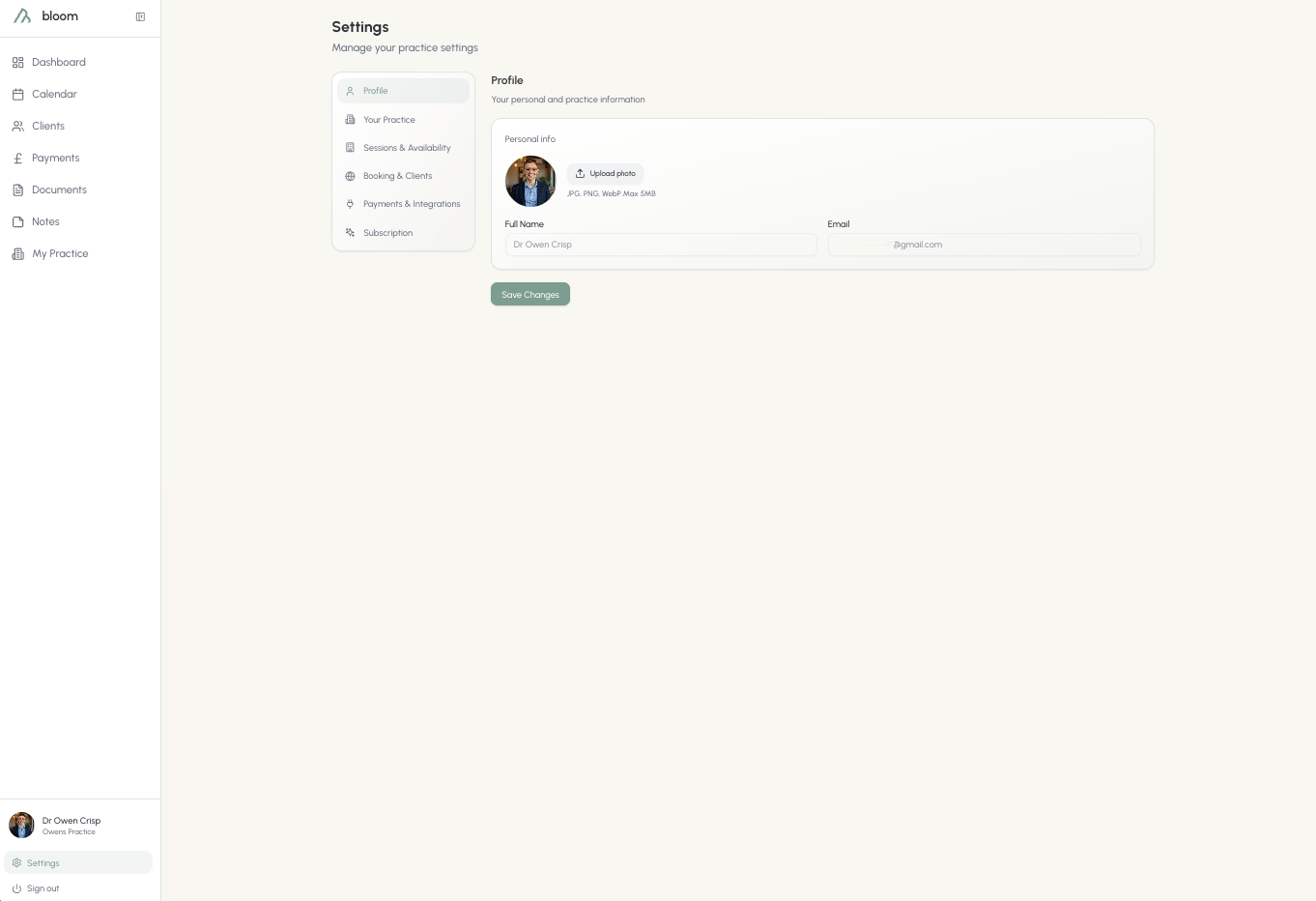
The profile space is where you'll customise your Bloom account. Here, you can upload a professional photo of yourself to show your patients exactly who you are.
### Changing details
Full name and email address are locked in this section. If you require these to be changed, please reach out to us directly, and we'll be happy to help.
 ### Two-factor authentication
The profile tab is also where you can add a second step to sign-in, keeping your account protected even if your password leaks. Bloom works with any standard authenticator app, including Google Authenticator, 1Password, and Apple Passwords.
The full guide: turning it on, backup codes, signing in, and what to do if you lose your device.
## Your practice
### Practice information
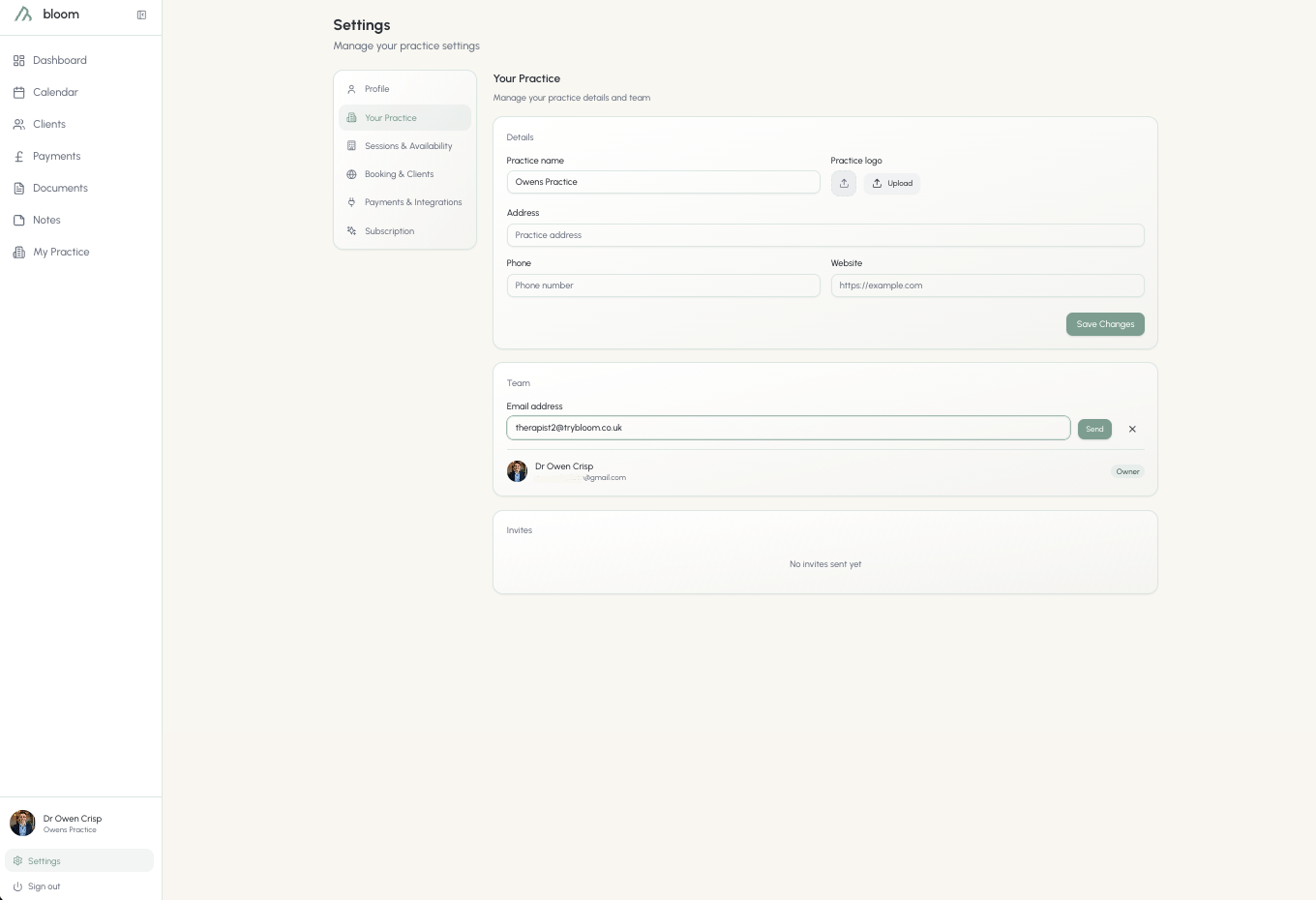
In **Your Practice** you'll find everything you need to really customise your Bloom experience and build out your online profile with us. This section is where you'll add important information such as:
* Practice name
* Practice logo
* Practice address
* Your contact phone number
* Your website URL
When making changes here, be sure to click **Save Changes**.
### Inviting colleagues
If you're a practice of multiple therapists, here is where you'll invite your colleagues. Seats can be purchased at an additional cost of **£29 a month**, or **£290 a year** if your practice is on the yearly plan. To invite a colleague, click **Invite** and you'll be given the chance to add someone via their email address.
### Two-factor authentication
The profile tab is also where you can add a second step to sign-in, keeping your account protected even if your password leaks. Bloom works with any standard authenticator app, including Google Authenticator, 1Password, and Apple Passwords.
The full guide: turning it on, backup codes, signing in, and what to do if you lose your device.
## Your practice
### Practice information
In **Your Practice** you'll find everything you need to really customise your Bloom experience and build out your online profile with us. This section is where you'll add important information such as:
* Practice name
* Practice logo
* Practice address
* Your contact phone number
* Your website URL
When making changes here, be sure to click **Save Changes**.
### Inviting colleagues
If you're a practice of multiple therapists, here is where you'll invite your colleagues. Seats can be purchased at an additional cost of **£29 a month**, or **£290 a year** if your practice is on the yearly plan. To invite a colleague, click **Invite** and you'll be given the chance to add someone via their email address.
 ## Sessions and availability
Sessions and availability let you dictate exactly when you want to work. With the Bloom calendar, we're giving you the freedom to book flexibly and set important customisations like default session times and buffer times - to allow you a breather between sessions. The calendar is the bread and butter of your daytime routine, so Bloom gives you the maximum flexibility to make the most of your day.
### Availability
When onboarding, you're given the chance to set your working hours before finalising. These can be easily customised; giving you the option to change your working hours should your days alter. Need to pick up the kids from school or lock in your pilates session? Drop in a break and split your working hours to block that time out on your calendar.
Think of working hours like the time sheet on your office door.
## Sessions and availability
Sessions and availability let you dictate exactly when you want to work. With the Bloom calendar, we're giving you the freedom to book flexibly and set important customisations like default session times and buffer times - to allow you a breather between sessions. The calendar is the bread and butter of your daytime routine, so Bloom gives you the maximum flexibility to make the most of your day.
### Availability
When onboarding, you're given the chance to set your working hours before finalising. These can be easily customised; giving you the option to change your working hours should your days alter. Need to pick up the kids from school or lock in your pilates session? Drop in a break and split your working hours to block that time out on your calendar.
Think of working hours like the time sheet on your office door.
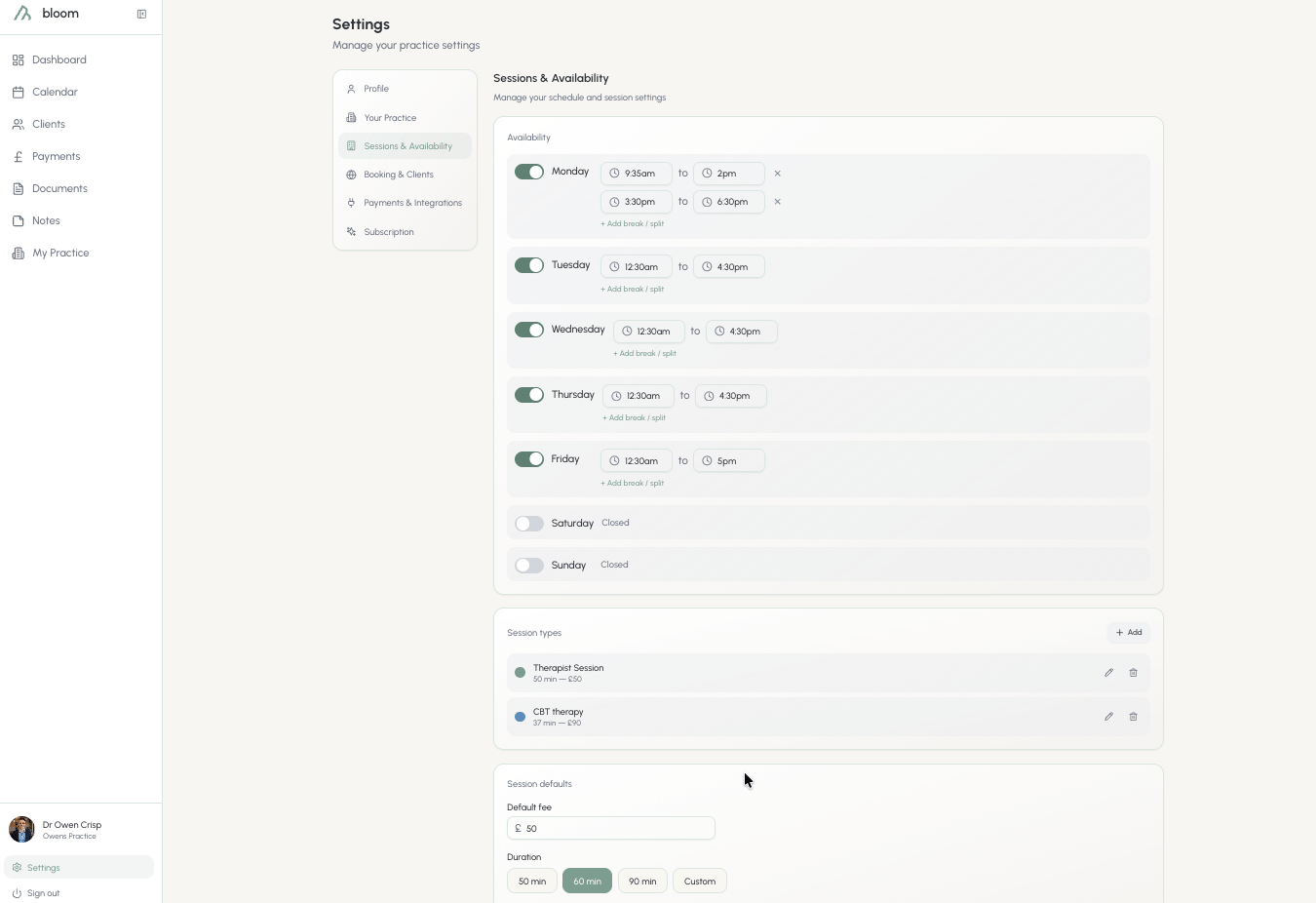 Session times can be set from the hour or half past it by default. To customise the time to the specific minute, you're able to type that time in the box.
### Session types
Adding a session type gives you the option to use those as a default when scheduling sessions. If you're set on what length of session and what fee you charge, this is a good way to cut time when planning out your week.
Session times can be set from the hour or half past it by default. To customise the time to the specific minute, you're able to type that time in the box.
### Session types
Adding a session type gives you the option to use those as a default when scheduling sessions. If you're set on what length of session and what fee you charge, this is a good way to cut time when planning out your week.
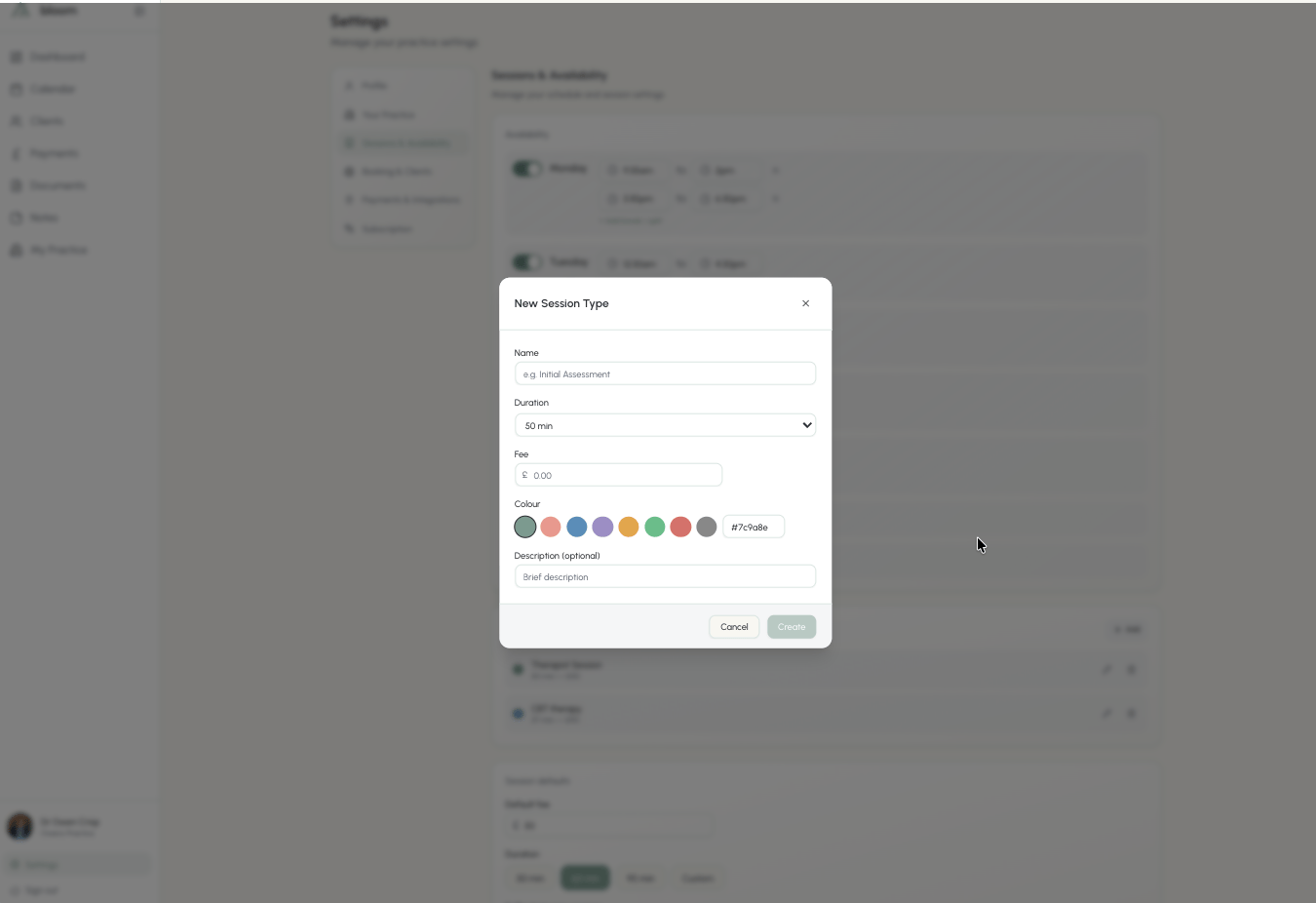 Session types can contain the following:
* **Name** - what you want the session to be called
* **Duration** - how long you'd like the session to be (remember, this will also include your buffer time when using this session on the calendar)
* **Fee** - what the default fee is for this type of session
* **Colour** - make the session type easily identifiable. We provide a default list of colours, if you'd like to choose your own, we suggest using a colour picker such as [w3schools.com/colors/colors\_picker.asp](https://www.w3schools.com/colors/colors_picker.asp)
* **Description** - any further information you'd like on that session
### Session defaults
If you choose not to set up sessions, you can use session defaults as a way to default your calendar to specific values.
Session types can contain the following:
* **Name** - what you want the session to be called
* **Duration** - how long you'd like the session to be (remember, this will also include your buffer time when using this session on the calendar)
* **Fee** - what the default fee is for this type of session
* **Colour** - make the session type easily identifiable. We provide a default list of colours, if you'd like to choose your own, we suggest using a colour picker such as [w3schools.com/colors/colors\_picker.asp](https://www.w3schools.com/colors/colors_picker.asp)
* **Description** - any further information you'd like on that session
### Session defaults
If you choose not to set up sessions, you can use session defaults as a way to default your calendar to specific values.
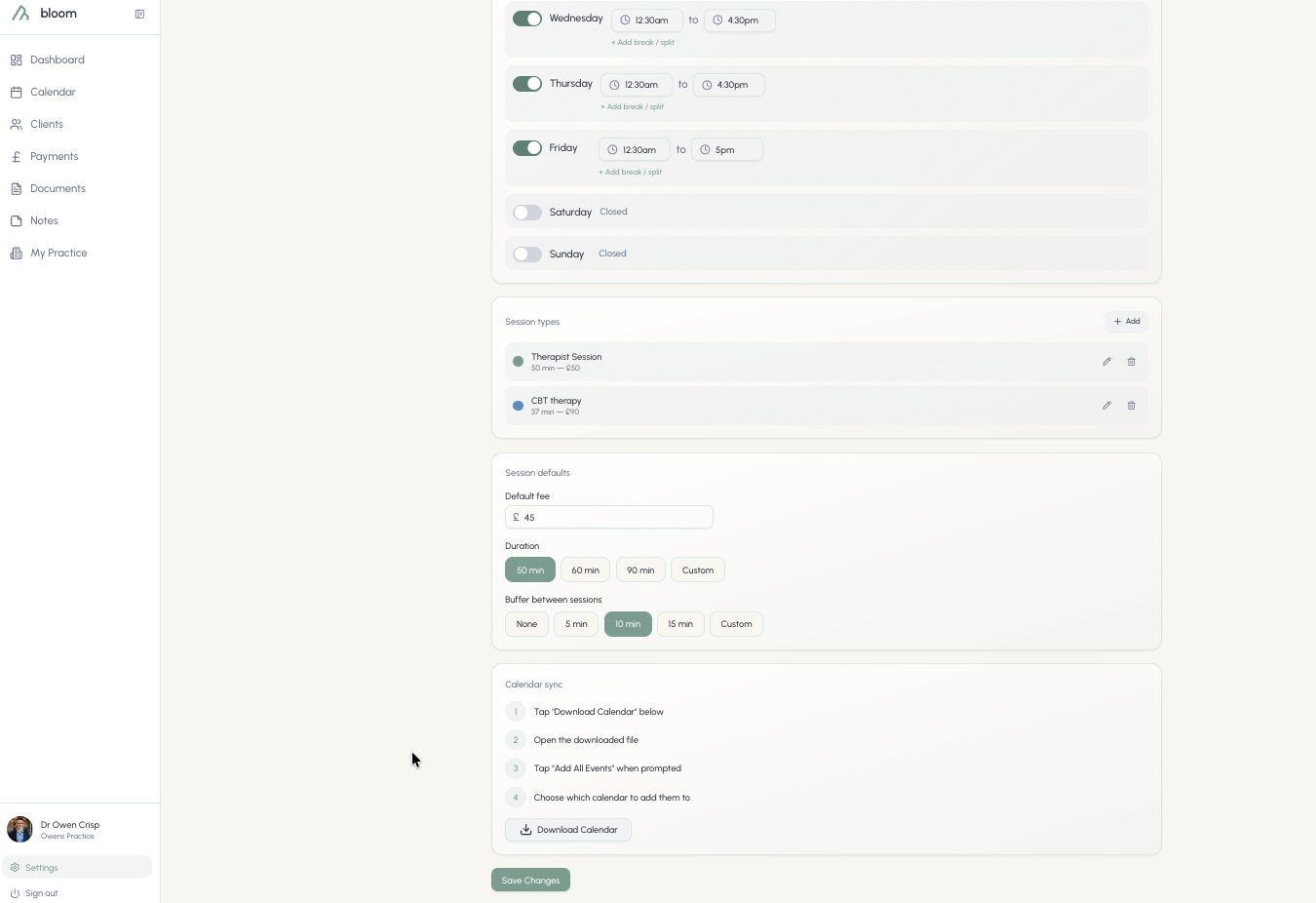 What you change here will show on the calendar when you're setting up a **New Appointment**.
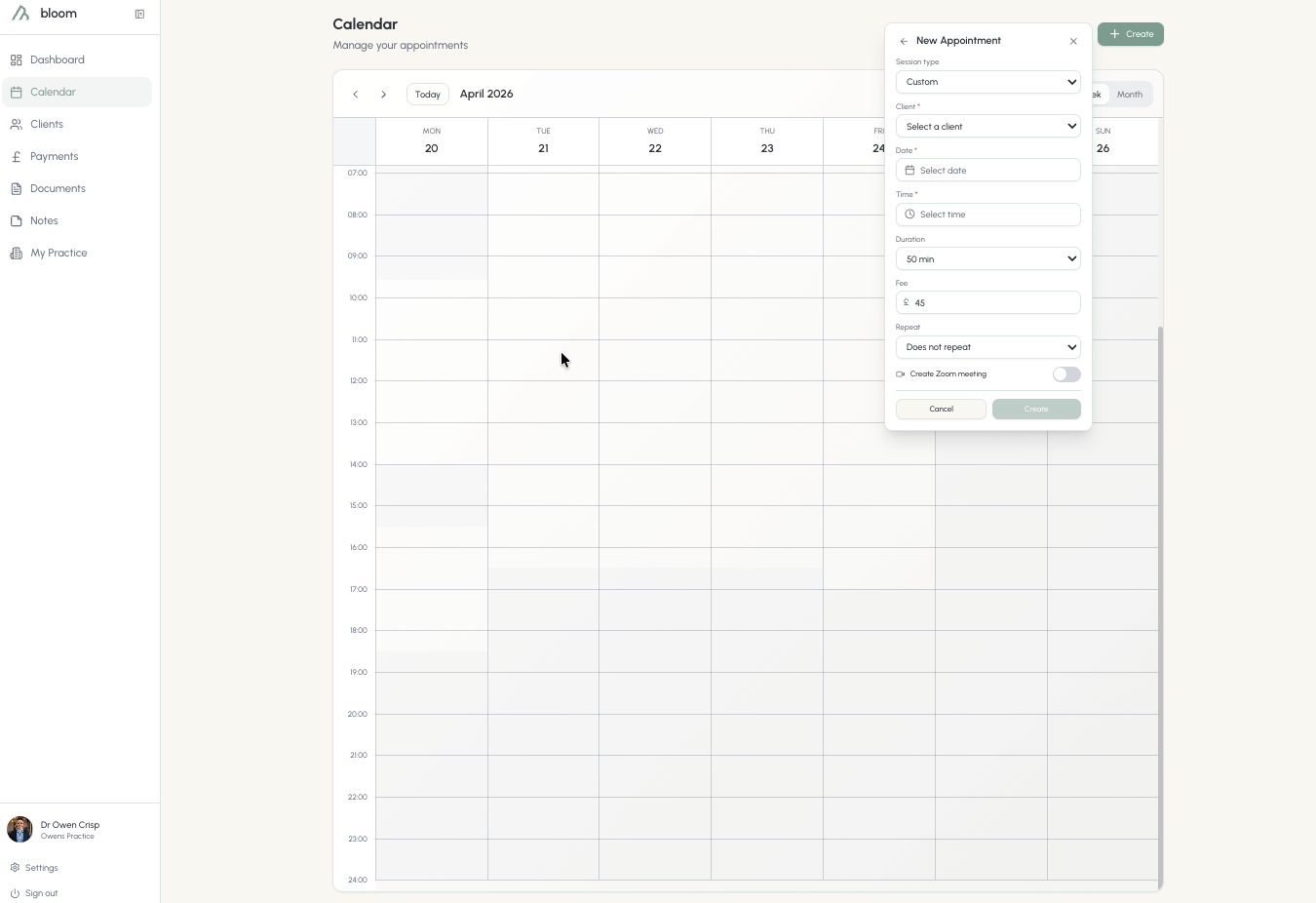 Buffer time will be automatically applied when you schedule an appointment in the calendar - this gives you crucial minutes to finalise your notes or grab quick coffee before your next engagement.
## Booking and clients
Booking and clients is where you manage consultation sessions, dictate your notice period and cancellation fees, and toggle the helpful email reminders.
### Booking link
If you're a professional that offers a consultation to prospective clients, here you can set a dedicated and customised Bloom link that can be used to book these sessions. The default for these sessions is **15 minutes**.
Buffer time will be automatically applied when you schedule an appointment in the calendar - this gives you crucial minutes to finalise your notes or grab quick coffee before your next engagement.
## Booking and clients
Booking and clients is where you manage consultation sessions, dictate your notice period and cancellation fees, and toggle the helpful email reminders.
### Booking link
If you're a professional that offers a consultation to prospective clients, here you can set a dedicated and customised Bloom link that can be used to book these sessions. The default for these sessions is **15 minutes**.
 The default for this link will be your full name. If you prefer this tailored to your practice, click the pencil icon to edit to your preference.
### Cancellation policy
Cancellations happen, and we understand that. But when a cancellation occurs, you can still choose to enforce a minimum time period before charging a fee.
Setting a late cancellation fee will enforce the charge if a client misses the cancellation window.
For clients who pay by card, the fee is collected automatically on a late cancellation - and pre-paid sessions refund themselves by the same rules. See [Card payments](/docs/card-payments#cancellations-no-shows-and-refunds).
### Email reminders
Toggle the handy email reminders sent to your clients to notify them of their bookings, **24 hours and 1 hour before**.
## Payments and integrations
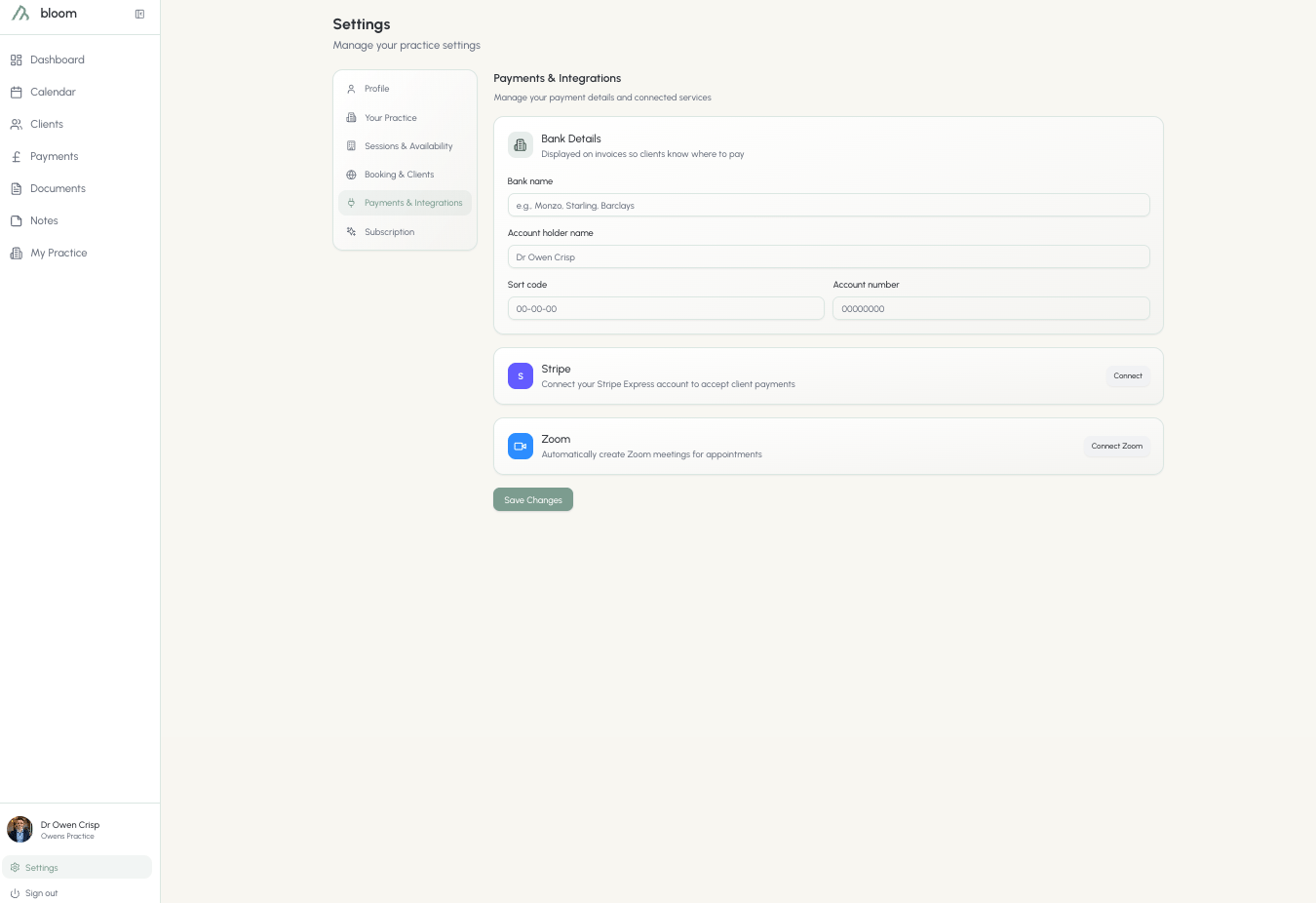
Payments and integrations is where you manage how money reaches you and which services Bloom is connected to. Each card starts collapsed - click one to open it.
### Card payments
Connect your own Stripe account and Bloom can collect session fees for you - charging saved cards automatically or emailing secure payment links. Setup takes about five minutes, and the card shows **Active** once Stripe has verified your details.
The default for this link will be your full name. If you prefer this tailored to your practice, click the pencil icon to edit to your preference.
### Cancellation policy
Cancellations happen, and we understand that. But when a cancellation occurs, you can still choose to enforce a minimum time period before charging a fee.
Setting a late cancellation fee will enforce the charge if a client misses the cancellation window.
For clients who pay by card, the fee is collected automatically on a late cancellation - and pre-paid sessions refund themselves by the same rules. See [Card payments](/docs/card-payments#cancellations-no-shows-and-refunds).
### Email reminders
Toggle the handy email reminders sent to your clients to notify them of their bookings, **24 hours and 1 hour before**.
## Payments and integrations
Payments and integrations is where you manage how money reaches you and which services Bloom is connected to. Each card starts collapsed - click one to open it.
### Card payments
Connect your own Stripe account and Bloom can collect session fees for you - charging saved cards automatically or emailing secure payment links. Setup takes about five minutes, and the card shows **Active** once Stripe has verified your details.
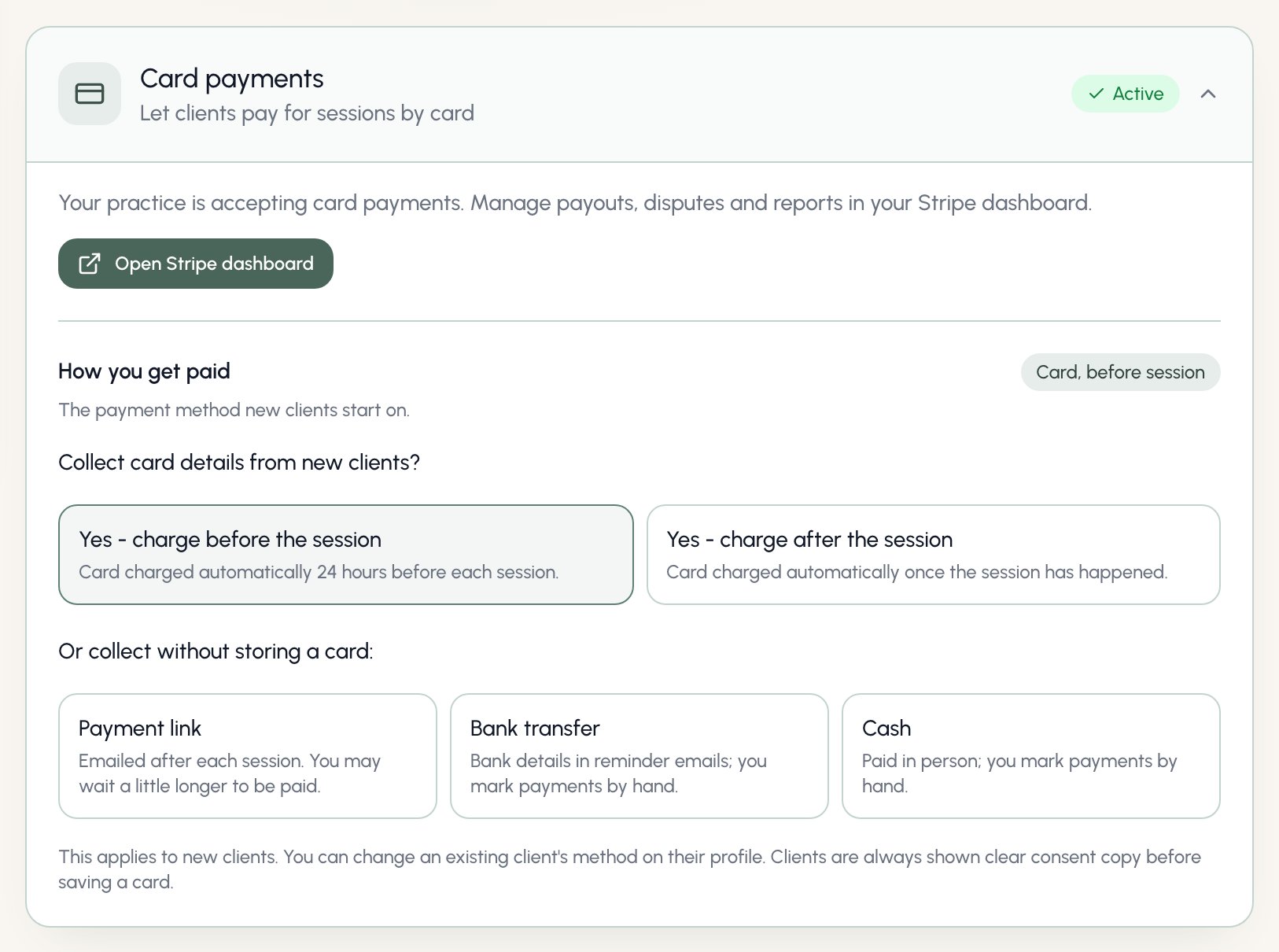 The full walkthrough - setup, saved cards, automatic charging, and refunds - lives in [Card payments](/docs/card-payments).
### How you get paid
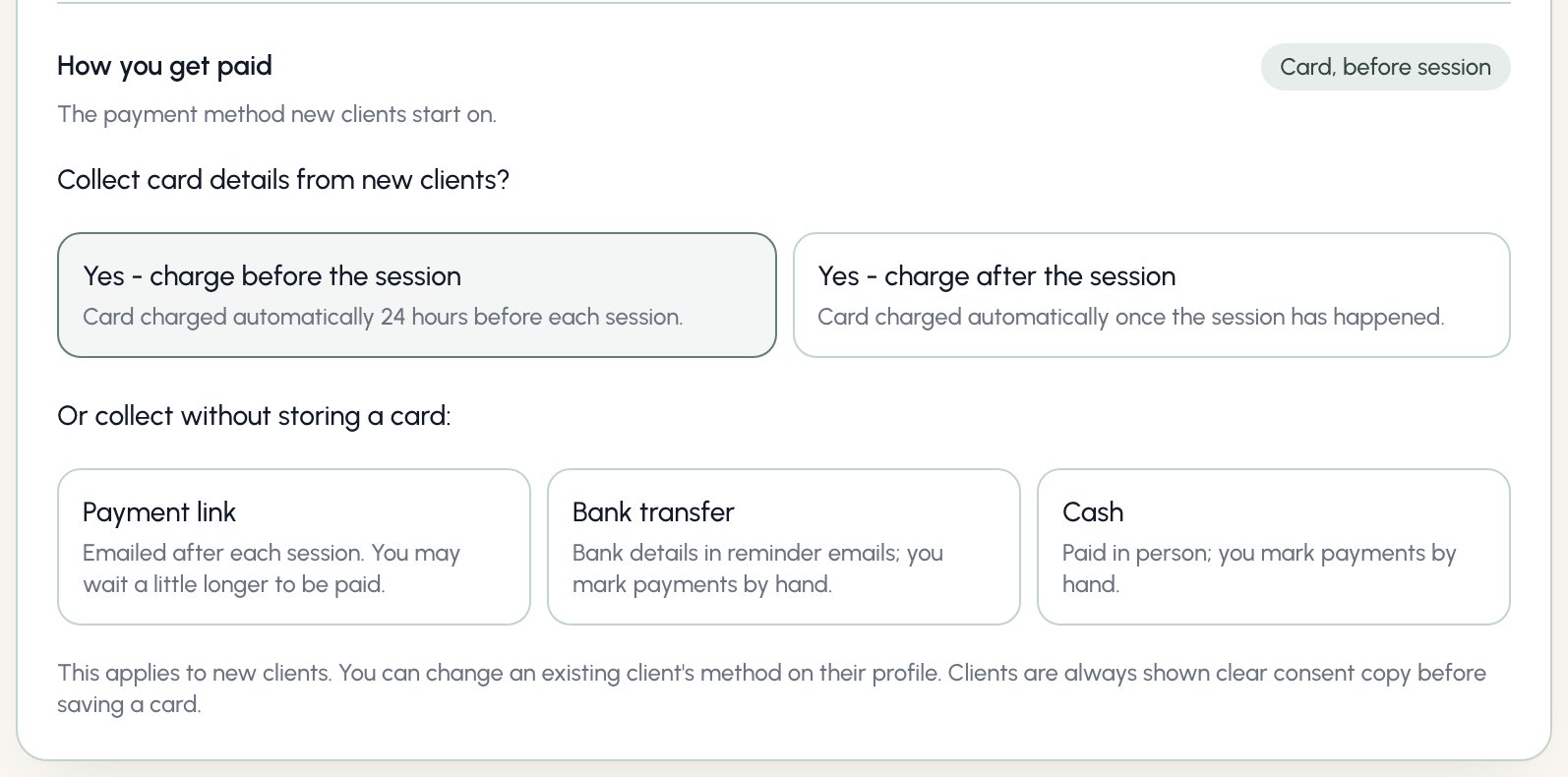
Inside the Card payments card, choose the payment method **new clients** start on: card charged before the session, card charged after, payment link, bank transfer, or cash. It's a default, not a switch - changing it never affects existing clients, whose methods you manage on their profiles.
The full walkthrough - setup, saved cards, automatic charging, and refunds - lives in [Card payments](/docs/card-payments).
### How you get paid
Inside the Card payments card, choose the payment method **new clients** start on: card charged before the session, card charged after, payment link, bank transfer, or cash. It's a default, not a switch - changing it never affects existing clients, whose methods you manage on their profiles.
 ### Bank details
Adding your bank details allows you to generate invoices that can be sent to the clients for manual payments.
Invoices for payments are automatically sent to clients to prompt to pay for their sessions using these details.
Please ensure your details are correct here, to prevent any late payments from clients.
### Bank details
Adding your bank details allows you to generate invoices that can be sent to the clients for manual payments.
Invoices for payments are automatically sent to clients to prompt to pay for their sessions using these details.
Please ensure your details are correct here, to prevent any late payments from clients.
 ## Subscription
Bloom subscriptions can be easily managed from the subscription portal. If you need to edit your billing details, purchase another seat for a colleague, or cancel your subscription, you'll find all you need here.
### Plan
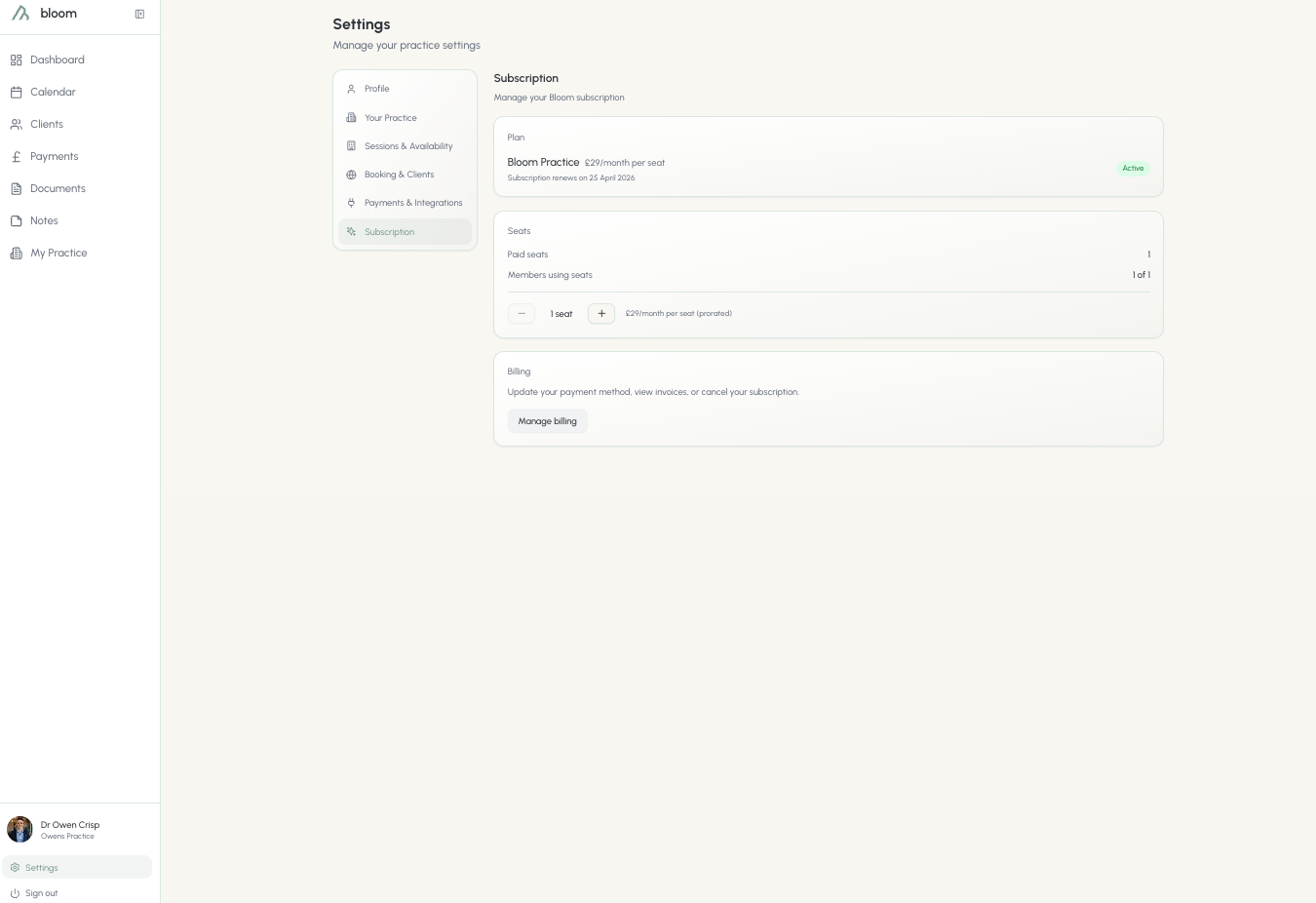
Here you'll find what plan you're on, how much you're charged, and when your subscription is set to renew. Bloom is billed monthly at £29 per seat, or yearly at £290 per seat - two months free compared to paying monthly. You choose between the two when you subscribe.
## Subscription
Bloom subscriptions can be easily managed from the subscription portal. If you need to edit your billing details, purchase another seat for a colleague, or cancel your subscription, you'll find all you need here.
### Plan
Here you'll find what plan you're on, how much you're charged, and when your subscription is set to renew. Bloom is billed monthly at £29 per seat, or yearly at £290 per seat - two months free compared to paying monthly. You choose between the two when you subscribe.
 ### Seats
Seats are determined by how many colleagues you have on a subscription. If you're a large practise and need over 5 seats, please get in contact via email and we'll help you with a discount.
### Billing
If you need to update your payment method, view your invoices for accounting, or cancel your subscription, you can find all your information here. All billing is dealt through Stripe; Bloom does not hold any of your card details.
If you're experiencing a problem and considering canceling your subscription, please reach out to the team here directly. We're more than happy to help.
### Seats
Seats are determined by how many colleagues you have on a subscription. If you're a large practise and need over 5 seats, please get in contact via email and we'll help you with a discount.
### Billing
If you need to update your payment method, view your invoices for accounting, or cancel your subscription, you can find all your information here. All billing is dealt through Stripe; Bloom does not hold any of your card details.
If you're experiencing a problem and considering canceling your subscription, please reach out to the team here directly. We're more than happy to help.