> ## Documentation Index
> Fetch the complete documentation index at: https://trybloom.co.uk/docs/llms.txt
> Use this file to discover all available pages before exploring further.
# Two-factor authentication
> Add a second step to sign-in and keep your account safe, even if your password leaks.
Your Bloom account holds sensitive client information, so it deserves more protection than a password alone. Two-factor authentication (often called 2FA or TOTP) adds a second step to sign-in: a 6-digit code from an authenticator app on your phone. Even if someone gets hold of your password, they can't get into your account without your device. Setup takes about two minutes, and in this guide we'll cover it from top to bottom.
## What you'll need
Bloom works with any standard authenticator app. If you already use one, you're ready to go. If not, all of these are free:
* **Google Authenticator** (iOS and Android)
* **Microsoft Authenticator** (iOS and Android)
* **Apple Passwords** (built into iPhone, iPad, and Mac)
* **1Password**, **Authy**, or any other app that supports authenticator codes
## Turning it on
Head to **Settings**, then **Profile**, and find the **Two-factor authentication** card:
 Select **Enable two-factor authentication**. Bloom generates a QR code and a setup key that are unique to your account.
Open your authenticator app, choose to add a new account, and scan the QR code. Can't scan? Enter the setup key manually instead - it's shown just below the code.
Select **Enable two-factor authentication**. Bloom generates a QR code and a setup key that are unique to your account.
Open your authenticator app, choose to add a new account, and scan the QR code. Can't scan? Enter the setup key manually instead - it's shown just below the code.
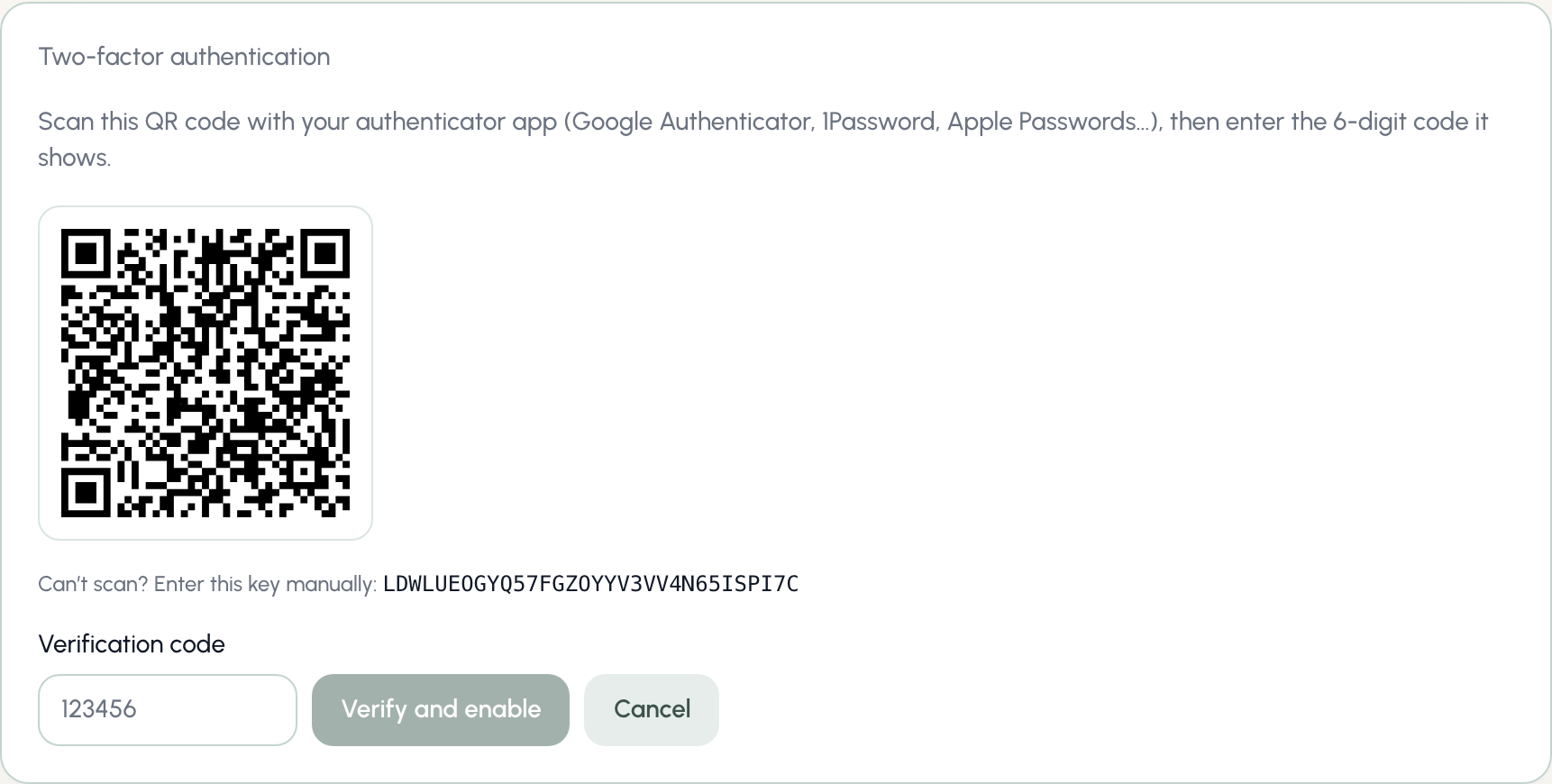 Your app will now show a 6-digit code for Bloom that changes every 30 seconds. Type it in and select **Verify and enable**.
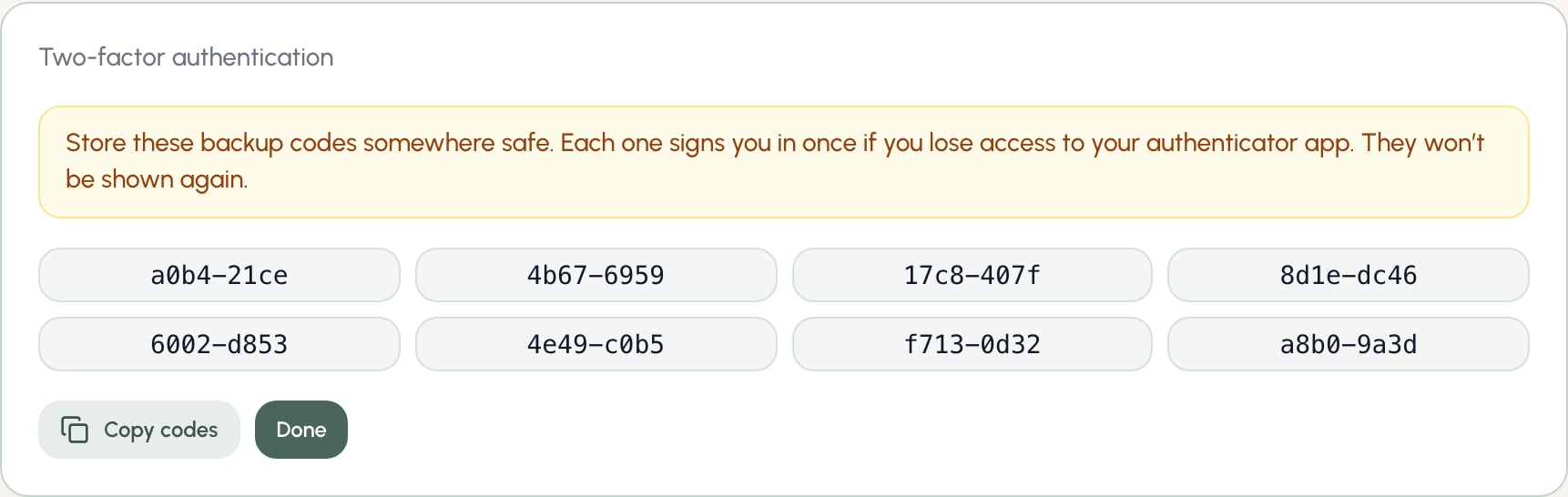
Bloom shows you 8 backup codes, once. Select **Copy codes** and store them somewhere safe, like a password manager.
Your app will now show a 6-digit code for Bloom that changes every 30 seconds. Type it in and select **Verify and enable**.
Bloom shows you 8 backup codes, once. Select **Copy codes** and store them somewhere safe, like a password manager.
 Once that's done, the card shows **Enabled** and your account is protected:
 ## Backup codes
Backup codes are your way back in if you lose access to your authenticator app. A few things to know:
* Each code signs you in **once**, then it stops working.
* They're shown **only at setup** - Bloom stores them securely and can't show them again.
* You can use one anywhere Bloom asks for a verification code, including when turning two-factor authentication off.
Treat backup codes like passwords. Don't email them to yourself or leave them in your downloads folder - a password manager or a printed copy somewhere safe is best.
## Signing in
With two-factor authentication on, signing in takes two steps. Enter your email and password as usual, then Bloom asks for your verification code:
## Backup codes
Backup codes are your way back in if you lose access to your authenticator app. A few things to know:
* Each code signs you in **once**, then it stops working.
* They're shown **only at setup** - Bloom stores them securely and can't show them again.
* You can use one anywhere Bloom asks for a verification code, including when turning two-factor authentication off.
Treat backup codes like passwords. Don't email them to yourself or leave them in your downloads folder - a password manager or a printed copy somewhere safe is best.
## Signing in
With two-factor authentication on, signing in takes two steps. Enter your email and password as usual, then Bloom asks for your verification code:
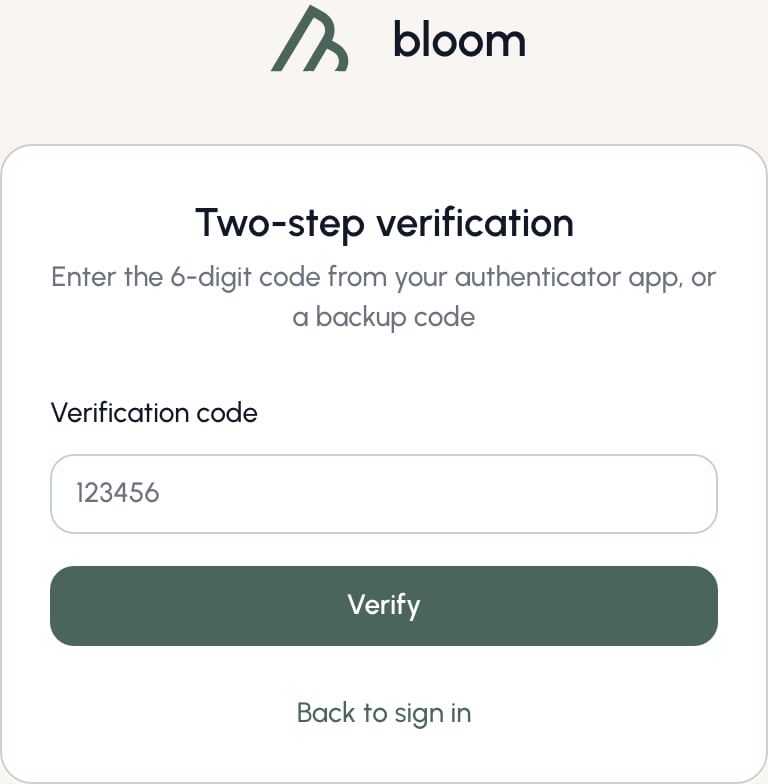 Open your authenticator app, find your Bloom account, and enter the 6-digit code it shows. A backup code works here too.
Codes refresh every 30 seconds, and each code works once. If a code is rejected, wait for your app to show the next one and try again.
## Turning it off
You can remove two-factor authentication at any time:
1. Go to **Settings**, then **Profile**.
2. On the **Two-factor authentication** card, select **Disable**.
3. Enter a code from your authenticator app (or a backup code) to confirm.
Your next sign-in will be back to just email and password. You can re-enable it whenever you like - you'll get a fresh QR code and a new set of backup codes.
Getting a new phone? Sign in before you wipe your old one, disable two-factor authentication, then re-enable it with the new device. If your old phone is already gone, use a backup code to sign in.
## Lost your device?
* **Have a backup code?** Use it to sign in, then disable and re-enable two-factor authentication with your new device.
* **Out of backup codes?** [Contact us](https://www.trybloom.co.uk/contact) and we'll verify your identity and remove two-factor authentication from your account so you can set it up again.
Open your authenticator app, find your Bloom account, and enter the 6-digit code it shows. A backup code works here too.
Codes refresh every 30 seconds, and each code works once. If a code is rejected, wait for your app to show the next one and try again.
## Turning it off
You can remove two-factor authentication at any time:
1. Go to **Settings**, then **Profile**.
2. On the **Two-factor authentication** card, select **Disable**.
3. Enter a code from your authenticator app (or a backup code) to confirm.
Your next sign-in will be back to just email and password. You can re-enable it whenever you like - you'll get a fresh QR code and a new set of backup codes.
Getting a new phone? Sign in before you wipe your old one, disable two-factor authentication, then re-enable it with the new device. If your old phone is already gone, use a backup code to sign in.
## Lost your device?
* **Have a backup code?** Use it to sign in, then disable and re-enable two-factor authentication with your new device.
* **Out of backup codes?** [Contact us](https://www.trybloom.co.uk/contact) and we'll verify your identity and remove two-factor authentication from your account so you can set it up again.