> ## Documentation Index
> Fetch the complete documentation index at: https://trybloom.co.uk/docs/llms.txt
> Use this file to discover all available pages before exploring further.
# Zoom
> Schedule and join client calls directly from the Bloom calendar.
As well as being your one-stop shop for all client notes and storage, Bloom also comes integrated with Zoom - a powerful feature for your calendar. This integration lets you directly schedule client calls inside the Bloom calendar, keeping you organised and connected in one place.
## Prerequisites
Before you connect Zoom to Bloom, make sure you have:
* An active **Bloom** account (any paid plan).
* A **Zoom** account. Free accounts work for short sessions; longer sessions need a paid Zoom plan.
* Permission to authorise third-party apps on your Zoom account. Some practice-managed Zoom accounts restrict this - check with your Zoom admin if the authorisation screen blocks you.
Create a free Zoom account to get started.
## Adding the app
Zoom lets you make calls in a browser or through its dedicated application. To connect your account to Bloom, you'll need to visit settings, then **integrations**:
Open your Bloom settings to manage integrations.
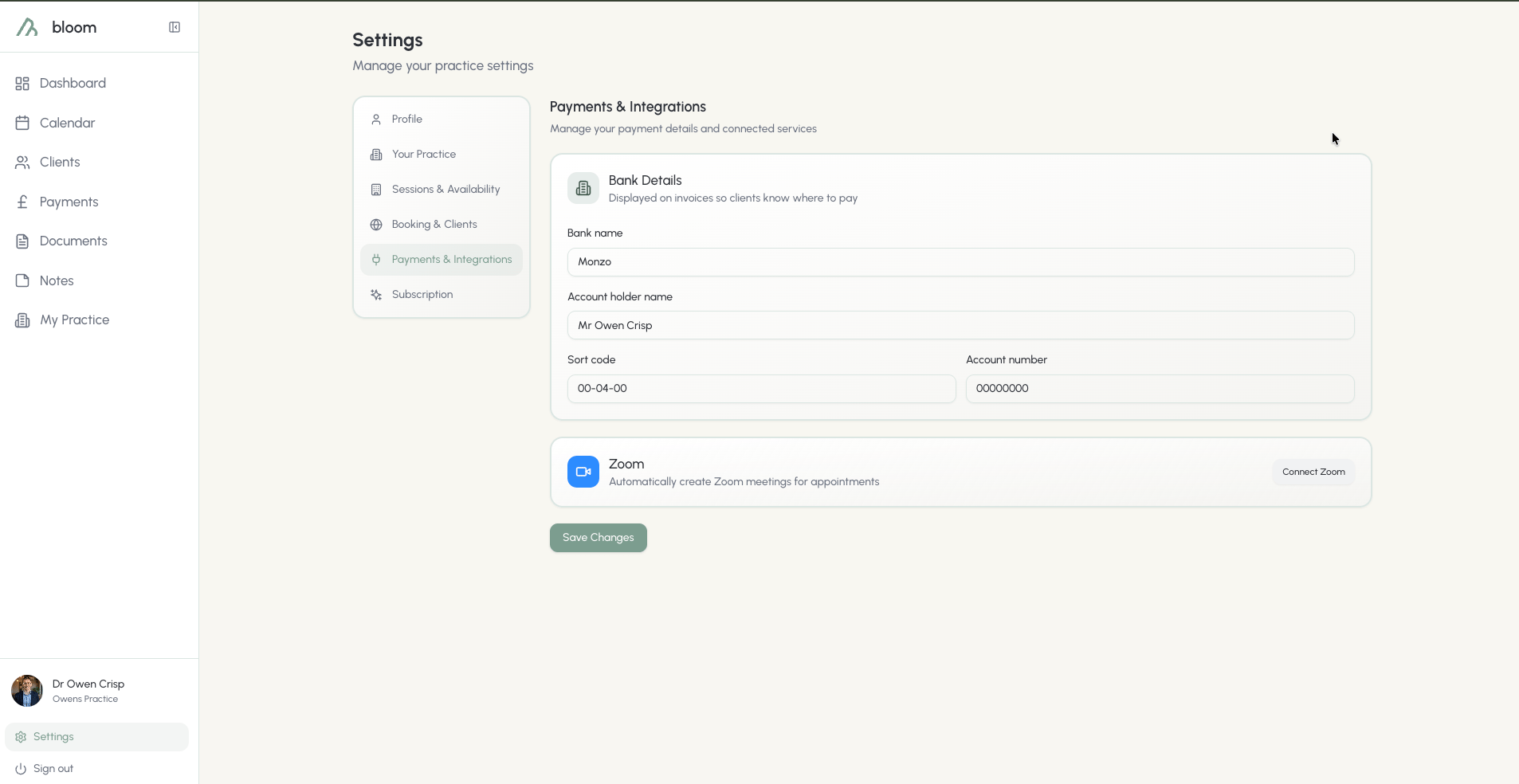 Step-by-step:
1. Sign in to Bloom and open **Settings → Integrations**.
2. Click **Connect Zoom**. You'll be redirected to Zoom's authorisation screen.
3. Sign in to Zoom (if you aren't already) and review the requested permissions.
4. Click **Allow** to authorise Bloom.
5. You'll be redirected back to the Bloom integrations page with a **connection successful** message.
Step-by-step:
1. Sign in to Bloom and open **Settings → Integrations**.
2. Click **Connect Zoom**. You'll be redirected to Zoom's authorisation screen.
3. Sign in to Zoom (if you aren't already) and review the requested permissions.
4. Click **Allow** to authorise Bloom.
5. You'll be redirected back to the Bloom integrations page with a **connection successful** message.
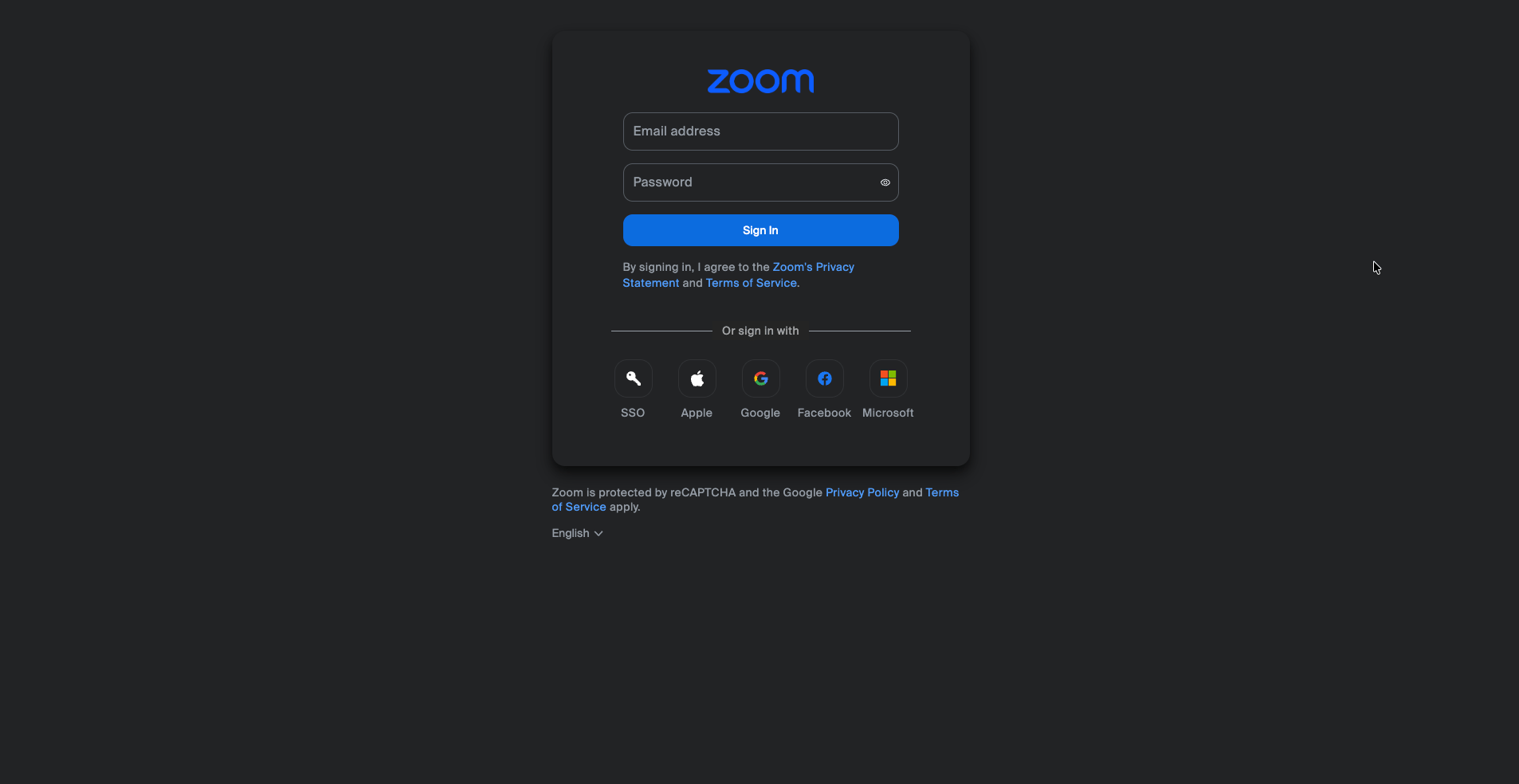 On a successful connection, you'll be redirected back to the Bloom integrations page and see a **connection successful** message appear.
If anything goes wrong during the connection, see the [Troubleshooting](#troubleshooting) section below.
### Installing from the Zoom App Marketplace
You can also add Bloom directly from the Zoom App Marketplace listing instead of starting inside Bloom. Both paths end in the same place and produce the same connection.
1. Sign in to your **Zoom** account at [zoom.us](https://zoom.us).
2. Open the [Bloom listing on the Zoom App Marketplace](https://marketplace.zoom.us/) (search for "Bloom").
3. Click **Add**.
4. Review the requested permissions and click **Allow** to authorise Bloom.
5. You'll be redirected to Bloom. Sign in to your Bloom account if prompted, and you'll land on the integrations page with a **connection successful** message.
You need an active Bloom account to finish the connection. If you don't have one yet, you'll be prompted to sign up before the Zoom connection is saved.
### Permissions Bloom requests
When you authorise Bloom, Zoom will show you the scopes Bloom needs. We only ask for what's required to schedule and manage your client calls:
| Scope | Why Bloom needs it |
| ------------------------ | --------------------------------------------------------------------------------- |
| `meeting:write:meeting` | Create a Zoom meeting when you schedule an appointment with the Zoom toggle on. |
| `meeting:read:meeting` | Fetch a fresh host start link when you click **Join Zoom** from an appointment. |
| `meeting:update:meeting` | Update the Zoom meeting if you reschedule the appointment in Bloom. |
| `meeting:delete:meeting` | Remove the Zoom meeting if you cancel or delete the appointment. |
| `user:read:user` | Identify which Zoom user is connected, so Bloom knows the meetings belong to you. |
Bloom does **not** request access to your recordings, cloud storage, chat, or contacts.
### Practices with multiple seats
If you're a practice with multiple seats, each seat will be required to use its own Zoom account. Sharing the same Zoom account can lead to clashes and can remove those sharing the account from the call if they join from another location.
## Using the integration
### Scheduling a Zoom call
**Use case:** automatically attach a Zoom meeting to a new client appointment in Bloom.
**Prerequisites:**
* Your Zoom account is connected (see [Adding the app](#adding-the-app)).
* You're creating or editing an appointment in the Bloom calendar.
Using either the **Create** button or by double-clicking on the calendar, you'll be prompted to the appointment scheduling menu. Once you've selected the session details and client, simply toggle the Zoom option to automatically schedule a call with Zoom:
On a successful connection, you'll be redirected back to the Bloom integrations page and see a **connection successful** message appear.
If anything goes wrong during the connection, see the [Troubleshooting](#troubleshooting) section below.
### Installing from the Zoom App Marketplace
You can also add Bloom directly from the Zoom App Marketplace listing instead of starting inside Bloom. Both paths end in the same place and produce the same connection.
1. Sign in to your **Zoom** account at [zoom.us](https://zoom.us).
2. Open the [Bloom listing on the Zoom App Marketplace](https://marketplace.zoom.us/) (search for "Bloom").
3. Click **Add**.
4. Review the requested permissions and click **Allow** to authorise Bloom.
5. You'll be redirected to Bloom. Sign in to your Bloom account if prompted, and you'll land on the integrations page with a **connection successful** message.
You need an active Bloom account to finish the connection. If you don't have one yet, you'll be prompted to sign up before the Zoom connection is saved.
### Permissions Bloom requests
When you authorise Bloom, Zoom will show you the scopes Bloom needs. We only ask for what's required to schedule and manage your client calls:
| Scope | Why Bloom needs it |
| ------------------------ | --------------------------------------------------------------------------------- |
| `meeting:write:meeting` | Create a Zoom meeting when you schedule an appointment with the Zoom toggle on. |
| `meeting:read:meeting` | Fetch a fresh host start link when you click **Join Zoom** from an appointment. |
| `meeting:update:meeting` | Update the Zoom meeting if you reschedule the appointment in Bloom. |
| `meeting:delete:meeting` | Remove the Zoom meeting if you cancel or delete the appointment. |
| `user:read:user` | Identify which Zoom user is connected, so Bloom knows the meetings belong to you. |
Bloom does **not** request access to your recordings, cloud storage, chat, or contacts.
### Practices with multiple seats
If you're a practice with multiple seats, each seat will be required to use its own Zoom account. Sharing the same Zoom account can lead to clashes and can remove those sharing the account from the call if they join from another location.
## Using the integration
### Scheduling a Zoom call
**Use case:** automatically attach a Zoom meeting to a new client appointment in Bloom.
**Prerequisites:**
* Your Zoom account is connected (see [Adding the app](#adding-the-app)).
* You're creating or editing an appointment in the Bloom calendar.
Using either the **Create** button or by double-clicking on the calendar, you'll be prompted to the appointment scheduling menu. Once you've selected the session details and client, simply toggle the Zoom option to automatically schedule a call with Zoom:
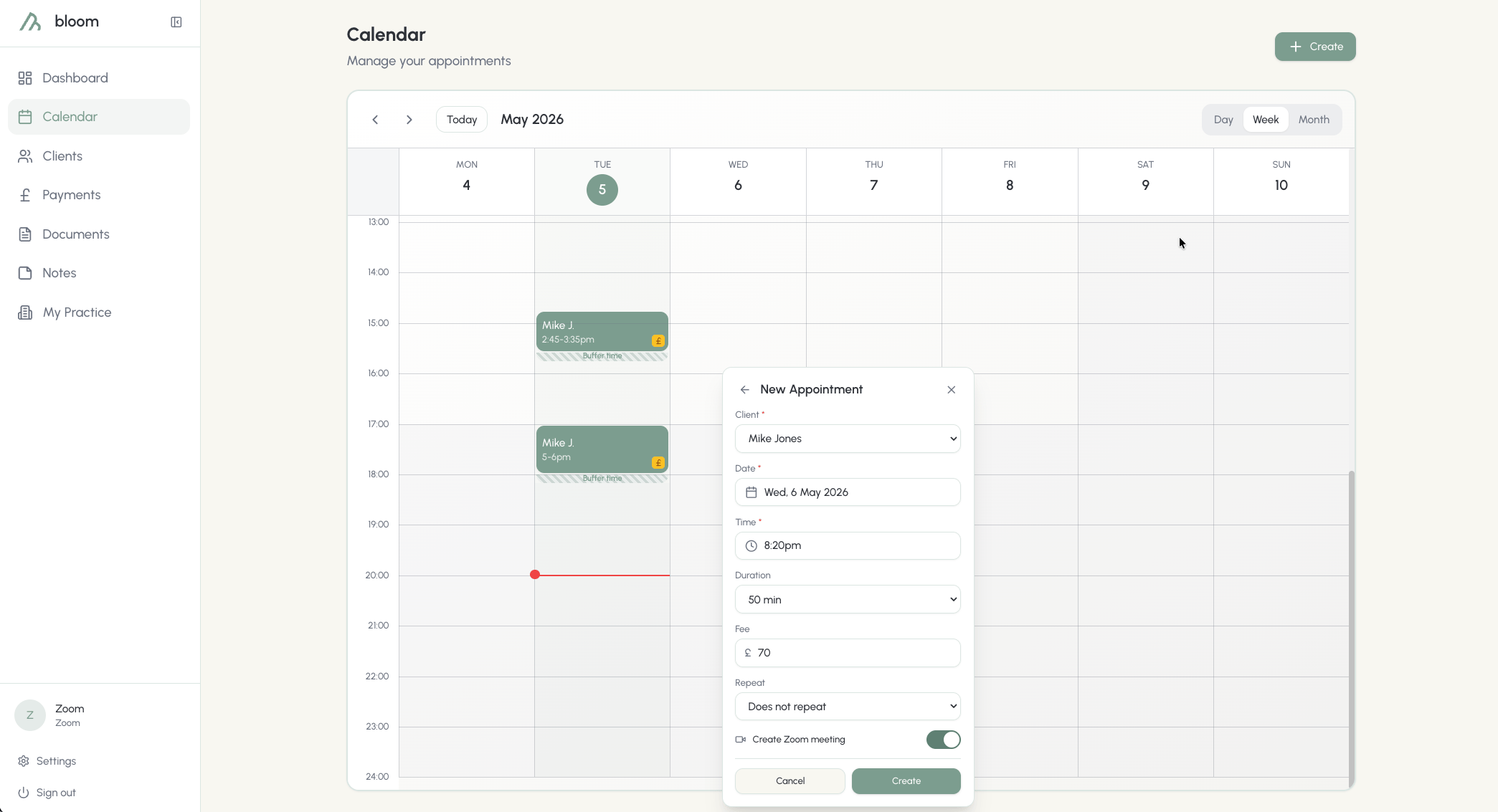 Upon completion, the calendar will automatically schedule your Zoom call and add the appointment. The meeting is created on your Zoom account with a waiting room enabled and recording disabled by default.
### Joining a Zoom call
**Use case:** open the Zoom meeting for a scheduled session, either as the host (you) or as the client.
**Prerequisites:**
* A Bloom appointment exists with a Zoom call attached.
* For the therapist: your Zoom account is still connected to Bloom and you're signed in to Bloom.
* For the client: they have the confirmation or reminder email containing the join link.
To join your calls, simply click the appointment you're looking to join and use the **Join Zoom** button to join the call.
You won't be able to join the call until the meeting starts. Clients can join up to **15 minutes** before the session start time.
Upon completion, the calendar will automatically schedule your Zoom call and add the appointment. The meeting is created on your Zoom account with a waiting room enabled and recording disabled by default.
### Joining a Zoom call
**Use case:** open the Zoom meeting for a scheduled session, either as the host (you) or as the client.
**Prerequisites:**
* A Bloom appointment exists with a Zoom call attached.
* For the therapist: your Zoom account is still connected to Bloom and you're signed in to Bloom.
* For the client: they have the confirmation or reminder email containing the join link.
To join your calls, simply click the appointment you're looking to join and use the **Join Zoom** button to join the call.
You won't be able to join the call until the meeting starts. Clients can join up to **15 minutes** before the session start time.
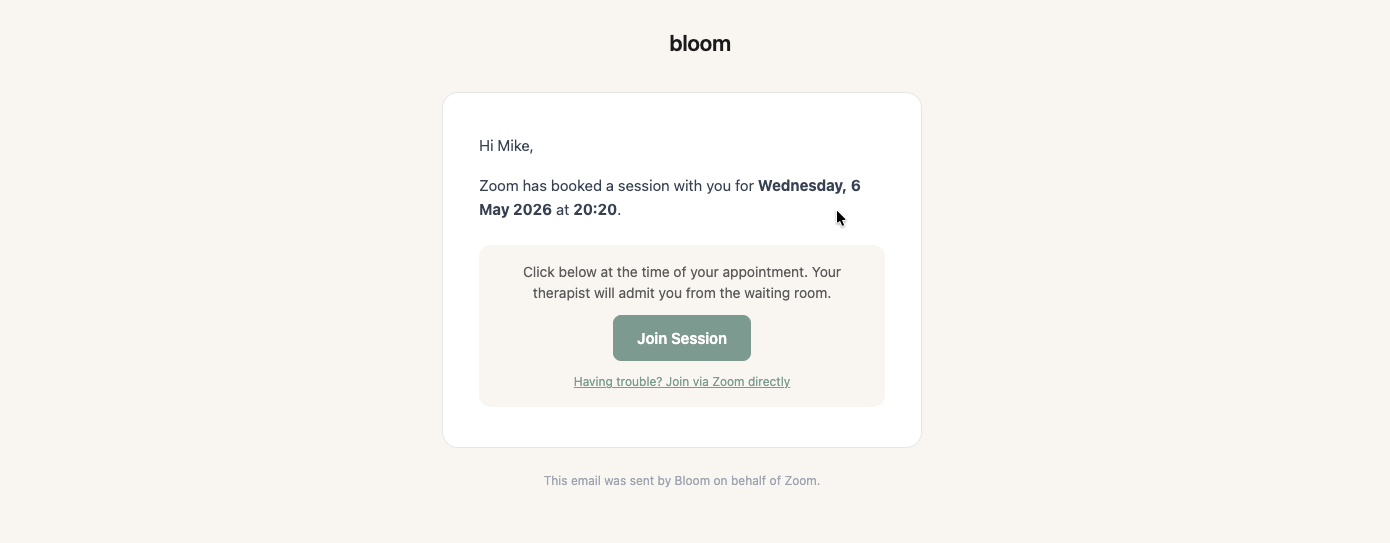
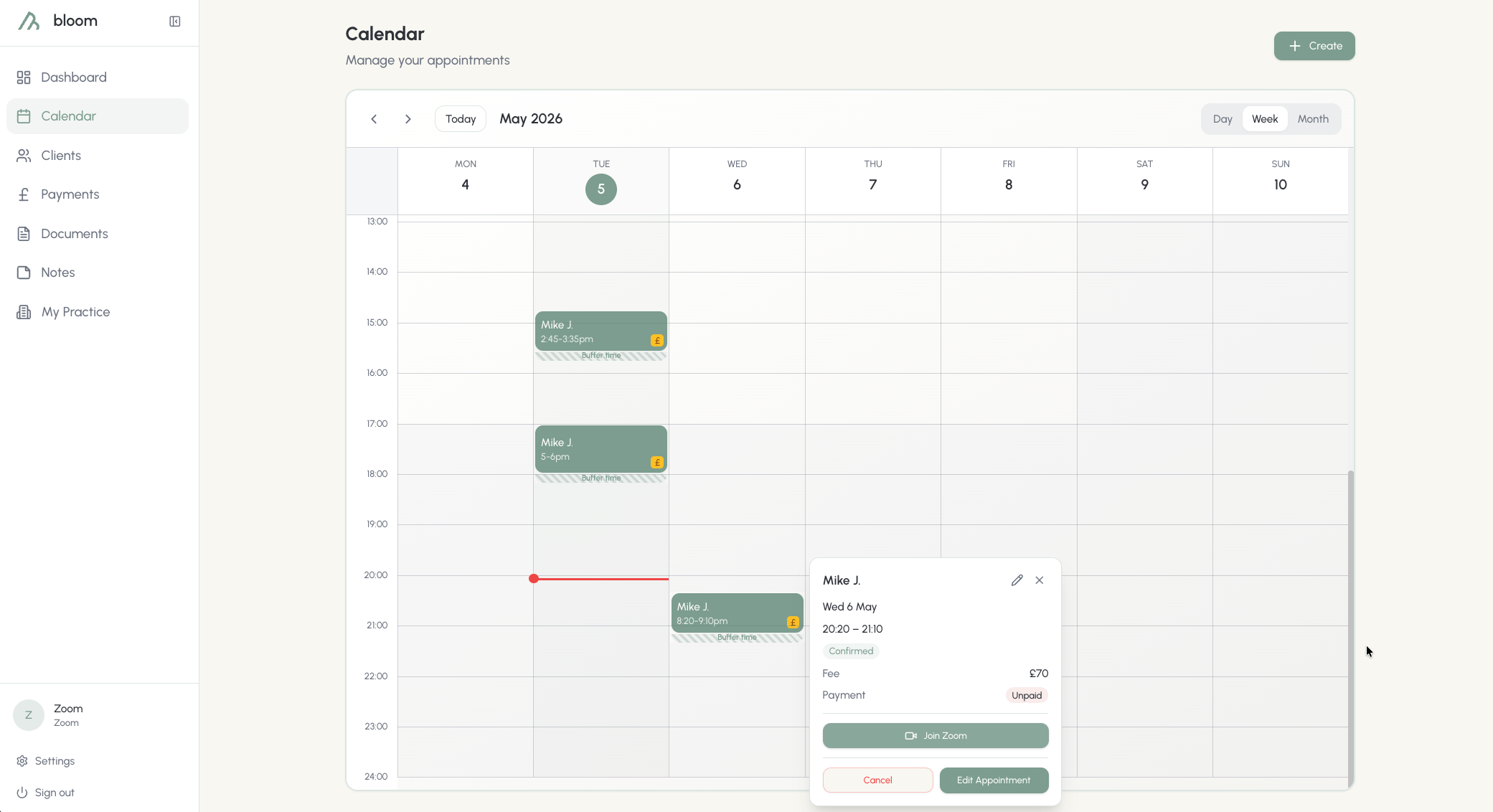 Your client will receive a confirmation email when you schedule the appointment, which includes a button or link to join the session. Clients will also be reminded before their session that they have this appointment on Zoom.
 #### Waiting rooms
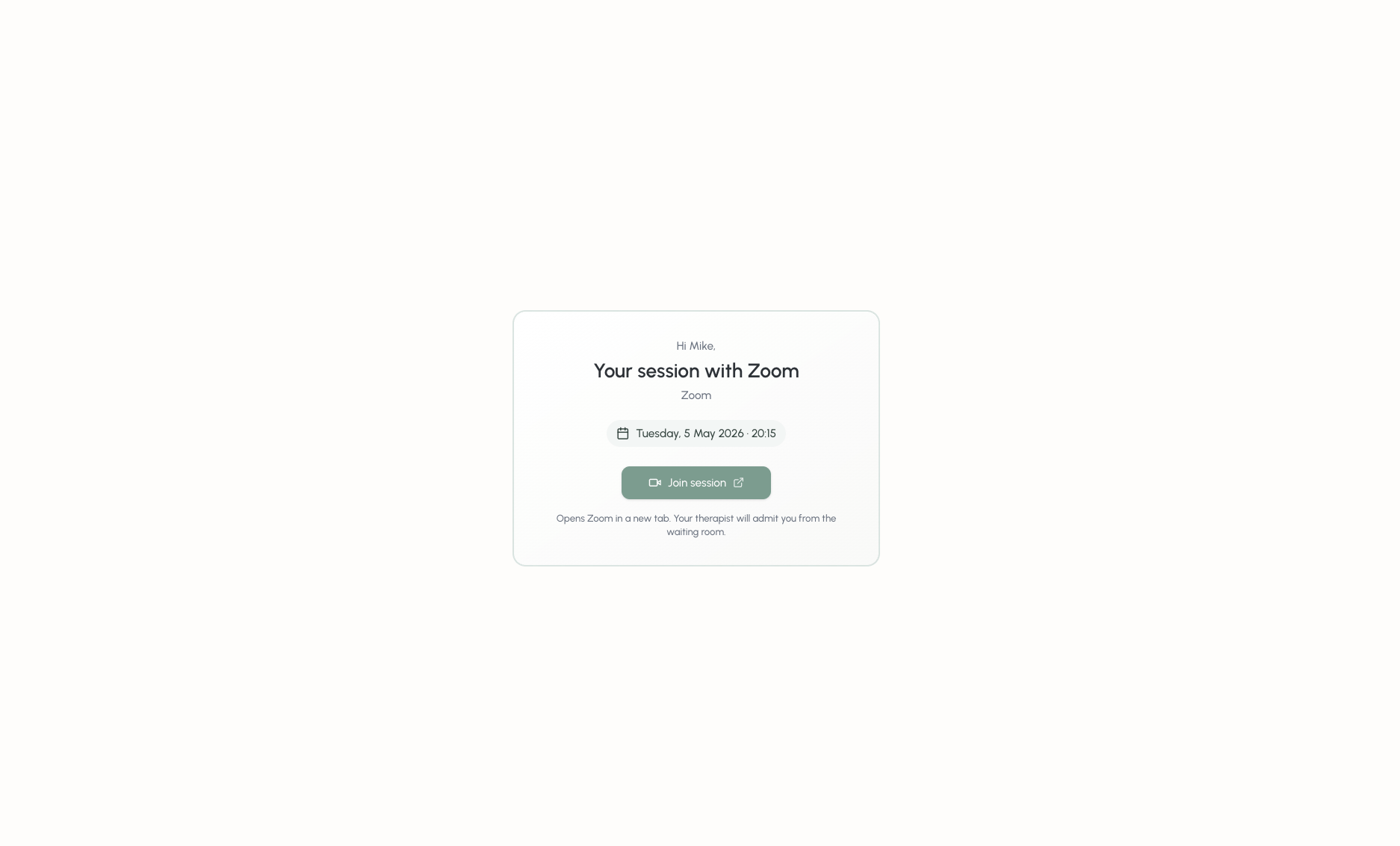
All clients will be admitted to the waiting room before the call starts. You'll need to admit each client into the call for them to join. No client will be admitted directly into the call.
Clients will be allowed to join the meeting room up to **15 minutes** before their session.
#### Waiting rooms
All clients will be admitted to the waiting room before the call starts. You'll need to admit each client into the call for them to join. No client will be admitted directly into the call.
Clients will be allowed to join the meeting room up to **15 minutes** before their session.
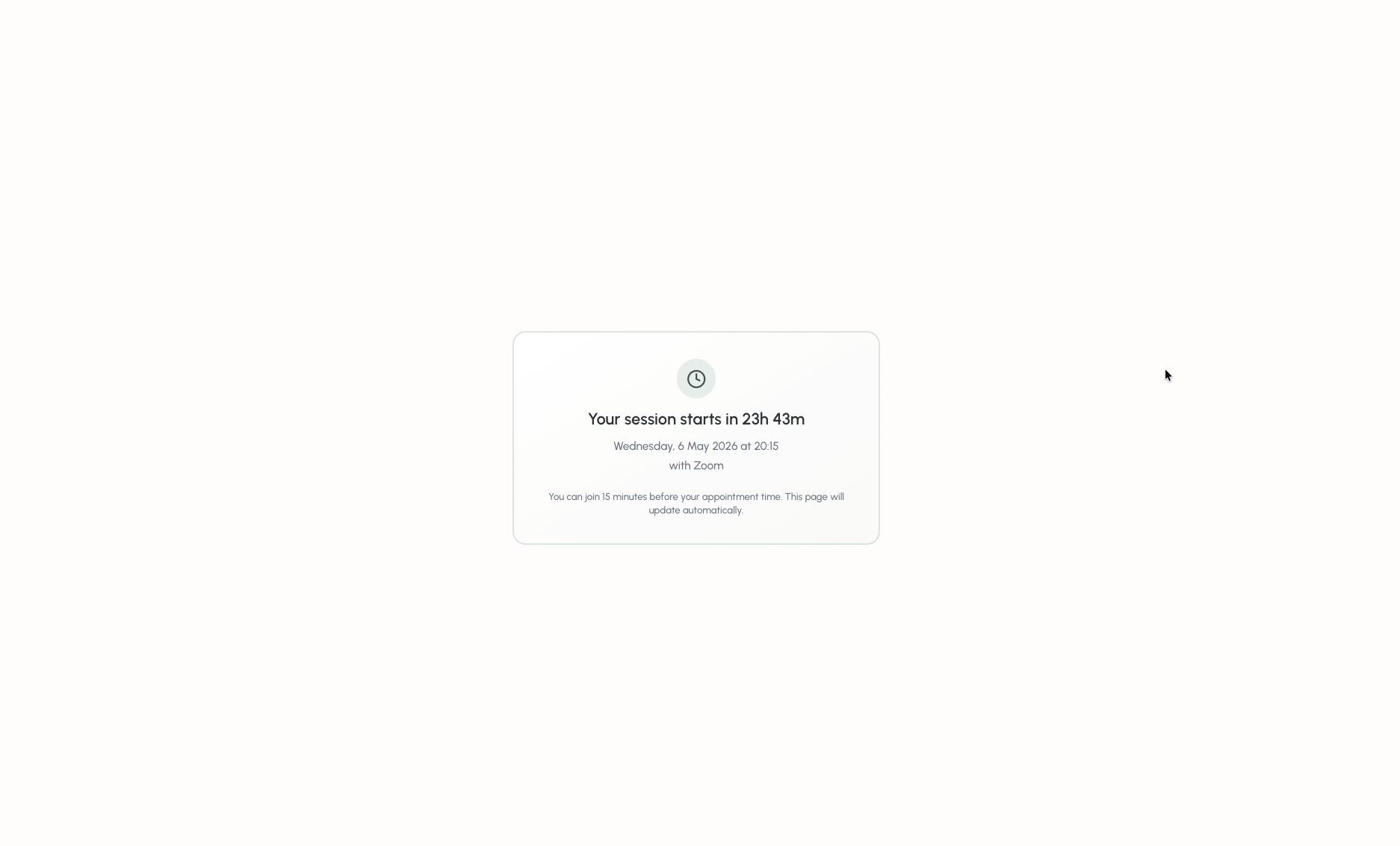 When sessions are available to join, and the client attempts to join through their link received through email, they'll be prompted to join the waiting room:
 ### Rescheduling a Zoom call
**Use case:** move a Zoom session to a new time without sending the client a fresh meeting link.
**Prerequisites:**
* The appointment was originally created with a Zoom call attached.
* Your Zoom account is still connected to Bloom.
When you reschedule a Bloom appointment that has a Zoom call attached, Bloom updates the existing Zoom meeting in place. The join link stays the same, so any link already sent to your client continues to work.
### Cancelling a Zoom call
**Use case:** cancel a session and remove the associated Zoom meeting from your Zoom account.
**Prerequisites:**
* The appointment was originally created with a Zoom call attached.
* Your Zoom account is still connected to Bloom.
Calls can be cancelled as easily as they were scheduled. On the calendar, select the appointment, and click **Cancel**. You'll be given the chance to confirm this cancellation or not; proceeding will cancel the call.
Cancellations will be removed from the calendar, the Zoom meeting will be deleted from your Zoom account, and the client will be notified via email.
## Removing the app
You can remove the Bloom + Zoom integration in two ways. Both have the same effect on your Bloom account; option two also removes Bloom from the list of installed apps inside Zoom.
### Option 1 - disconnect inside Bloom
1. Sign in to Bloom and open **Settings → Integrations**.
2. Find Zoom in the list and click **Disconnect**.
3. Confirm the prompt.
### Rescheduling a Zoom call
**Use case:** move a Zoom session to a new time without sending the client a fresh meeting link.
**Prerequisites:**
* The appointment was originally created with a Zoom call attached.
* Your Zoom account is still connected to Bloom.
When you reschedule a Bloom appointment that has a Zoom call attached, Bloom updates the existing Zoom meeting in place. The join link stays the same, so any link already sent to your client continues to work.
### Cancelling a Zoom call
**Use case:** cancel a session and remove the associated Zoom meeting from your Zoom account.
**Prerequisites:**
* The appointment was originally created with a Zoom call attached.
* Your Zoom account is still connected to Bloom.
Calls can be cancelled as easily as they were scheduled. On the calendar, select the appointment, and click **Cancel**. You'll be given the chance to confirm this cancellation or not; proceeding will cancel the call.
Cancellations will be removed from the calendar, the Zoom meeting will be deleted from your Zoom account, and the client will be notified via email.
## Removing the app
You can remove the Bloom + Zoom integration in two ways. Both have the same effect on your Bloom account; option two also removes Bloom from the list of installed apps inside Zoom.
### Option 1 - disconnect inside Bloom
1. Sign in to Bloom and open **Settings → Integrations**.
2. Find Zoom in the list and click **Disconnect**.
3. Confirm the prompt.
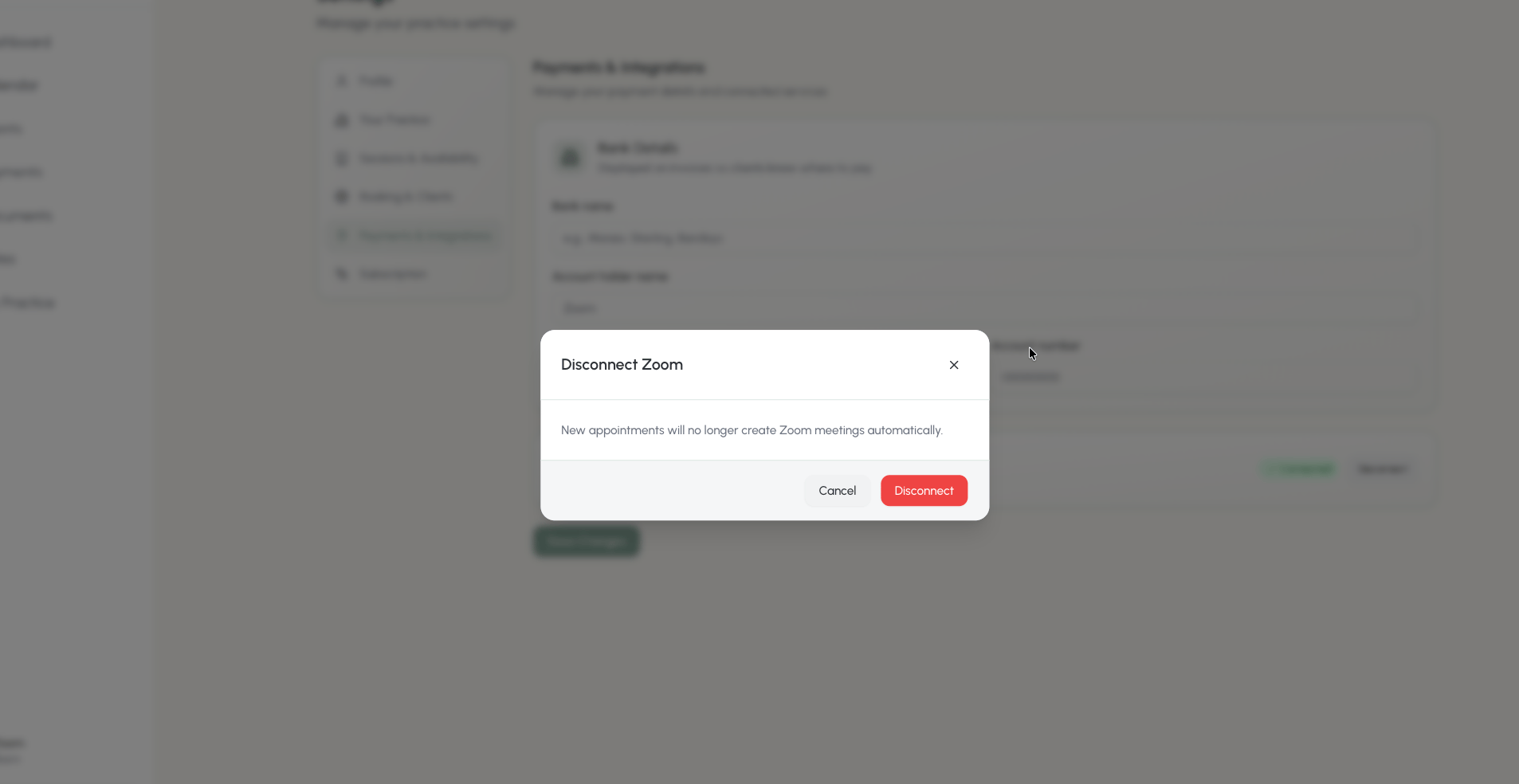 Once completed, your account is then successfully disconnected.
### Option 2 - uninstall via the Zoom App Marketplace
1. Sign in to your **Zoom** account at [zoom.us](https://zoom.us).
2. Open the [Zoom App Marketplace](https://marketplace.zoom.us/) and click **Manage → Added Apps** (or search for "Bloom").
3. Select the **Bloom** app.
4. Click **Remove**.
Zoom will notify Bloom that you've uninstalled, and Bloom will clear your stored Zoom credentials automatically.
### What happens to your data when you remove the app
When you disconnect Zoom from Bloom (either method above), Bloom does the following immediately:
* **Revokes your Zoom access token** with Zoom, so Bloom can no longer act on your behalf.
* **Deletes your encrypted Zoom access and refresh tokens** from Bloom's database.
* **Clears the connection record** linking your Bloom account to your Zoom user id.
Bloom does **not** store recordings, chat transcripts, participant lists, or any other content from your Zoom meetings, so there is nothing else to delete on Bloom's side.
### Implications of removal
Before you disconnect, please be aware that:
* **Future appointments will no longer auto-create Zoom calls.** The Zoom toggle in the appointment dialog will be unavailable until you reconnect.
* **Already-scheduled Zoom calls remain in your Zoom account.** Bloom keeps the join link and meeting ID stored against the appointment, so clients who already have the link can still join. If you also want those meetings cancelled, delete them in your Zoom account or cancel the matching appointments in Bloom **before** disconnecting (while Bloom still has access to remove them from Zoom).
* **Rescheduling existing Zoom appointments in Bloom will no longer update Zoom.** The Bloom appointment time will change, but the Zoom meeting on your account will keep its original time. We recommend reconnecting Zoom, or updating the Zoom meeting manually, in this case.
* **You can reconnect at any time.** Reconnecting issues a fresh authorisation; previously-created meetings are not re-linked but new appointments will work as normal.
## Troubleshooting
Make sure pop-up blockers and tracking-protection extensions are not blocking `zoom.us`. Try again in a private/incognito window. If you use a practice-managed Zoom account, your admin may have disabled third-party app authorisation. Ask them to allow Bloom.
Your Zoom account is managed by an organisation that requires admin approval for new apps. Ask your Zoom admin to pre-approve Bloom on the Zoom App Marketplace, then try connecting again.
This means Bloom can't see an active Zoom connection on your account. Open **Settings → Integrations** and check that Zoom is listed as connected. If it shows **Reconnect**, click it and finish the Zoom authorisation flow.
The most common cause is that the meeting was deleted in Zoom (manually, or because the Zoom account was disconnected and reconnected). Reschedule the appointment in Bloom with the Zoom toggle on to create a fresh meeting, then notify your client of the new link.
Bloom creates every meeting with cloud and local recording **disabled** by default, so sessions are not recorded unless you turn recording on manually inside the Zoom client during the call. Bloom never accesses, stores, or manages your recordings - any recording you make lives entirely in your own Zoom account. To find a recording you started, sign in to [zoom.us](https://zoom.us) and open **Recordings**, or check the local folder on the device you recorded from. If recording controls are greyed out in Zoom, your Zoom plan or your Zoom admin's settings may not permit recording - this is a Zoom account setting and isn't controlled by Bloom.
Ask the client to use the link from the most recent confirmation or reminder email. If they're using a calendar entry they created themselves, the link there may be stale - the link in their Bloom-sent email is always the current one.
Just reconnect from **Settings → Integrations**. New appointments will get Zoom calls again immediately. Existing appointments keep their original join links, so your clients aren't affected.
If your issue isn't covered above, please [contact support](#contact-support).
## FAQ
Not necessarily. Free Zoom accounts work fine for sessions under 40 minutes with up to 100 participants. For longer sessions you'll need a Zoom paid plan. Bloom doesn't change any limit Zoom applies to your account.
No. Each practitioner using Bloom must connect their own Zoom account. Sharing a Zoom account causes participants to be kicked when someone else joins the same account elsewhere.
No. Bloom creates meetings with cloud and local recording disabled. If you want to record a session, enable recording manually inside the Zoom client during the call (and make sure your client consents).
Bloom encrypts both the access and refresh tokens at rest using AES-256-GCM before storing them. They're only decrypted in-memory when Bloom needs to call the Zoom API on your behalf.
No. Your clients can join from any browser using the link in their email. They don't need to create a Zoom account.
Bloom only manages meetings it creates itself. Meetings you scheduled directly in Zoom won't appear in Bloom.
## Contact support
If you need help with the Zoom integration, the Bloom support team is happy to assist.
* **Contact form:** [trybloom.co.uk/contact](https://www.trybloom.co.uk/contact)
* **Email:** [hello@trybloom.co.uk](mailto:hello@trybloom.co.uk)
* **Hours:** Monday to Friday, 9am - 5pm UK time
* **First response:** within one working day
When contacting support about the Zoom integration, please include:
* The email address on your Bloom account.
* A description of what you were trying to do.
* Any error message that appeared, and a screenshot if possible.
Open the Bloom contact form
Once completed, your account is then successfully disconnected.
### Option 2 - uninstall via the Zoom App Marketplace
1. Sign in to your **Zoom** account at [zoom.us](https://zoom.us).
2. Open the [Zoom App Marketplace](https://marketplace.zoom.us/) and click **Manage → Added Apps** (or search for "Bloom").
3. Select the **Bloom** app.
4. Click **Remove**.
Zoom will notify Bloom that you've uninstalled, and Bloom will clear your stored Zoom credentials automatically.
### What happens to your data when you remove the app
When you disconnect Zoom from Bloom (either method above), Bloom does the following immediately:
* **Revokes your Zoom access token** with Zoom, so Bloom can no longer act on your behalf.
* **Deletes your encrypted Zoom access and refresh tokens** from Bloom's database.
* **Clears the connection record** linking your Bloom account to your Zoom user id.
Bloom does **not** store recordings, chat transcripts, participant lists, or any other content from your Zoom meetings, so there is nothing else to delete on Bloom's side.
### Implications of removal
Before you disconnect, please be aware that:
* **Future appointments will no longer auto-create Zoom calls.** The Zoom toggle in the appointment dialog will be unavailable until you reconnect.
* **Already-scheduled Zoom calls remain in your Zoom account.** Bloom keeps the join link and meeting ID stored against the appointment, so clients who already have the link can still join. If you also want those meetings cancelled, delete them in your Zoom account or cancel the matching appointments in Bloom **before** disconnecting (while Bloom still has access to remove them from Zoom).
* **Rescheduling existing Zoom appointments in Bloom will no longer update Zoom.** The Bloom appointment time will change, but the Zoom meeting on your account will keep its original time. We recommend reconnecting Zoom, or updating the Zoom meeting manually, in this case.
* **You can reconnect at any time.** Reconnecting issues a fresh authorisation; previously-created meetings are not re-linked but new appointments will work as normal.
## Troubleshooting
Make sure pop-up blockers and tracking-protection extensions are not blocking `zoom.us`. Try again in a private/incognito window. If you use a practice-managed Zoom account, your admin may have disabled third-party app authorisation. Ask them to allow Bloom.
Your Zoom account is managed by an organisation that requires admin approval for new apps. Ask your Zoom admin to pre-approve Bloom on the Zoom App Marketplace, then try connecting again.
This means Bloom can't see an active Zoom connection on your account. Open **Settings → Integrations** and check that Zoom is listed as connected. If it shows **Reconnect**, click it and finish the Zoom authorisation flow.
The most common cause is that the meeting was deleted in Zoom (manually, or because the Zoom account was disconnected and reconnected). Reschedule the appointment in Bloom with the Zoom toggle on to create a fresh meeting, then notify your client of the new link.
Bloom creates every meeting with cloud and local recording **disabled** by default, so sessions are not recorded unless you turn recording on manually inside the Zoom client during the call. Bloom never accesses, stores, or manages your recordings - any recording you make lives entirely in your own Zoom account. To find a recording you started, sign in to [zoom.us](https://zoom.us) and open **Recordings**, or check the local folder on the device you recorded from. If recording controls are greyed out in Zoom, your Zoom plan or your Zoom admin's settings may not permit recording - this is a Zoom account setting and isn't controlled by Bloom.
Ask the client to use the link from the most recent confirmation or reminder email. If they're using a calendar entry they created themselves, the link there may be stale - the link in their Bloom-sent email is always the current one.
Just reconnect from **Settings → Integrations**. New appointments will get Zoom calls again immediately. Existing appointments keep their original join links, so your clients aren't affected.
If your issue isn't covered above, please [contact support](#contact-support).
## FAQ
Not necessarily. Free Zoom accounts work fine for sessions under 40 minutes with up to 100 participants. For longer sessions you'll need a Zoom paid plan. Bloom doesn't change any limit Zoom applies to your account.
No. Each practitioner using Bloom must connect their own Zoom account. Sharing a Zoom account causes participants to be kicked when someone else joins the same account elsewhere.
No. Bloom creates meetings with cloud and local recording disabled. If you want to record a session, enable recording manually inside the Zoom client during the call (and make sure your client consents).
Bloom encrypts both the access and refresh tokens at rest using AES-256-GCM before storing them. They're only decrypted in-memory when Bloom needs to call the Zoom API on your behalf.
No. Your clients can join from any browser using the link in their email. They don't need to create a Zoom account.
Bloom only manages meetings it creates itself. Meetings you scheduled directly in Zoom won't appear in Bloom.
## Contact support
If you need help with the Zoom integration, the Bloom support team is happy to assist.
* **Contact form:** [trybloom.co.uk/contact](https://www.trybloom.co.uk/contact)
* **Email:** [hello@trybloom.co.uk](mailto:hello@trybloom.co.uk)
* **Hours:** Monday to Friday, 9am - 5pm UK time
* **First response:** within one working day
When contacting support about the Zoom integration, please include:
* The email address on your Bloom account.
* A description of what you were trying to do.
* Any error message that appeared, and a screenshot if possible.
Open the Bloom contact form