Creating templates
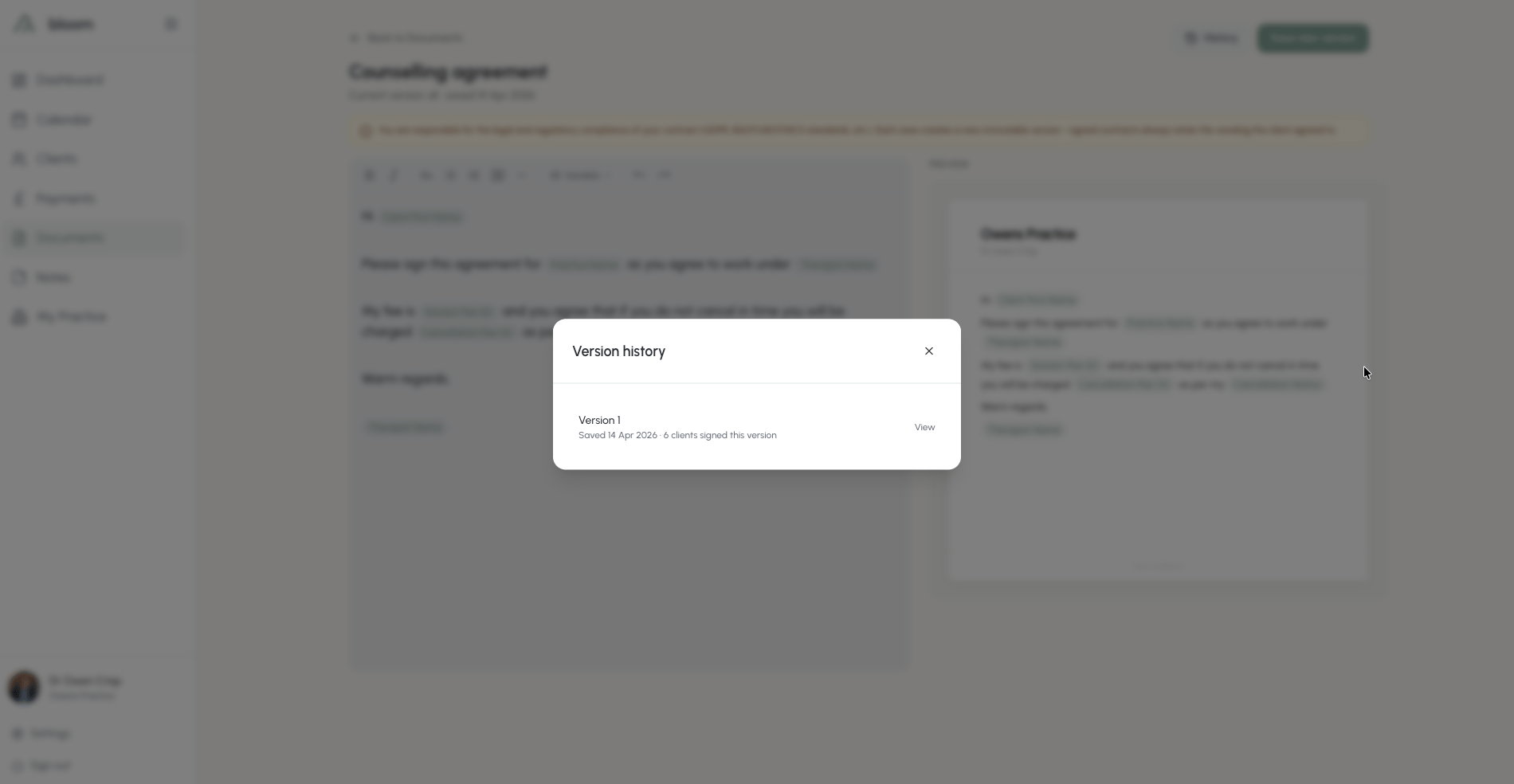
To help save you those precious minutes, Bloom comes pre-loaded with some default documents inside. These can be used, or changed - whichever suits your workflow best. In addition, Bloom will come with its own client agreement. This will automatically send to any clients you add to the system and comes pre-populated with your practice-specific details, such as payment terms and fees. While we have covered all the basics, some users may prefer to use their own documents. Bloom currently contains the following templates:Counselling Agreement
Discharge Letter
Homework Sheet
Session Summary
Welcome Letter
Using templates
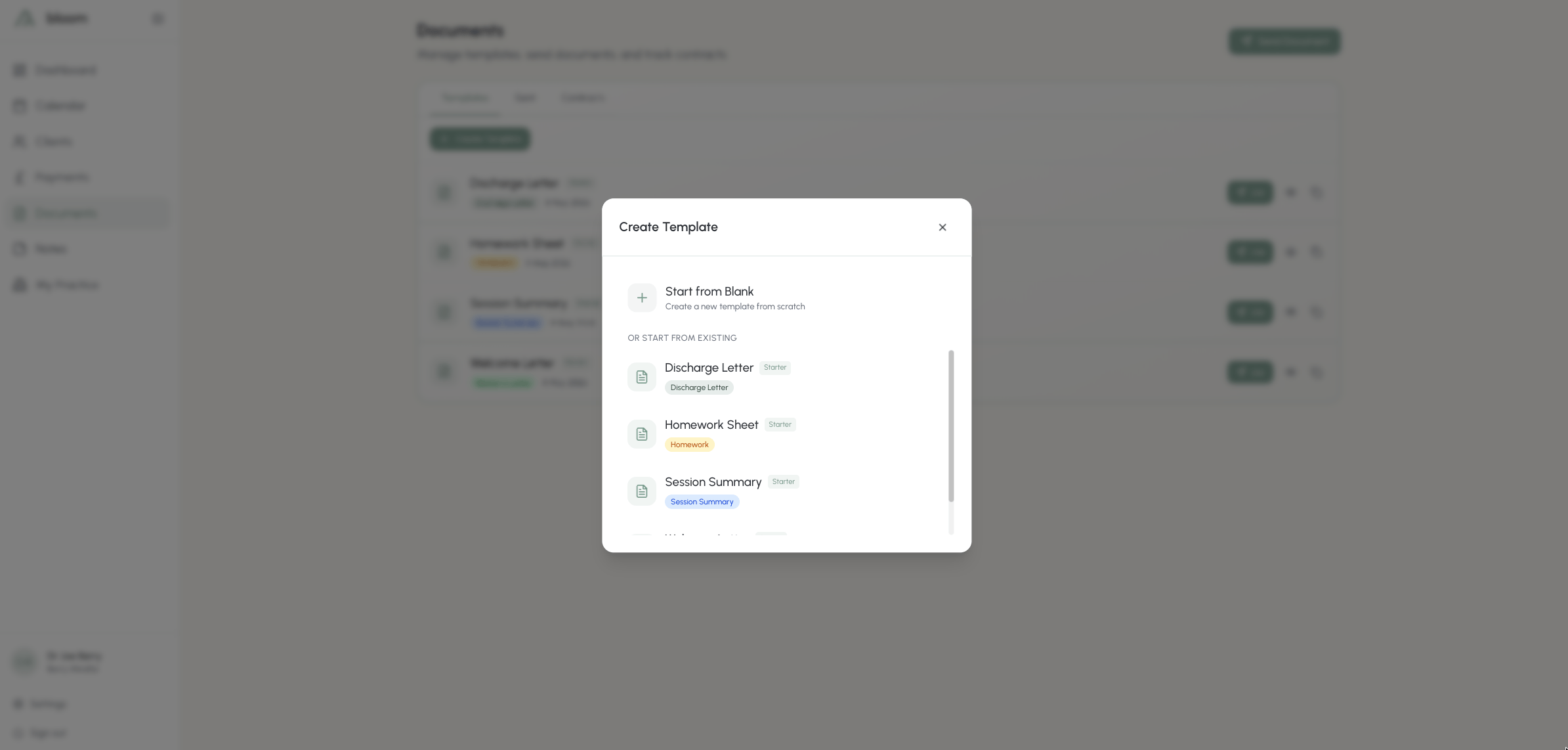
Clicking the arrow on the templates page will allow you to use one of our templates. Here you can see the templates are pre-filled with the variables of your practice. We provide a handy preview of what the template may look like on the right hand side, so you know exactly what you’re sending. These templates can be easily edited by clicking in and using your own wording, or can be assigned to a client and sent without any changes. To send a template to a client, search their name in the search bar and the Send document button will become available.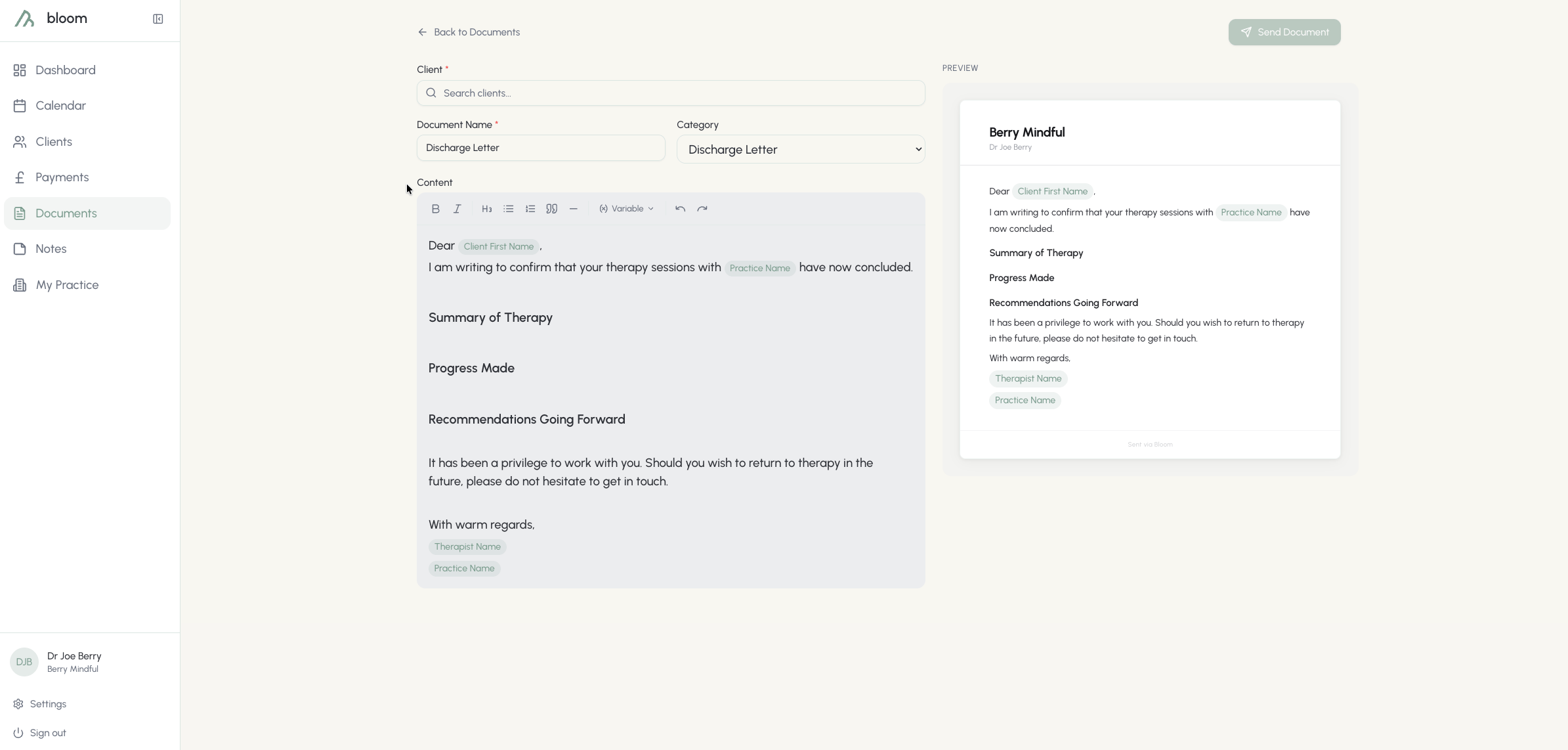
Copying documents
Find yourself needing to make adjustments to certain documents but don’t want to overwrite the main? Copying the templates can be done using the second icon next to use - this will duplicate the current template.Deleting documents
Only documents that have been added or duplicated can be deleted; the base Bloom templates cannot be removed.
Your documents
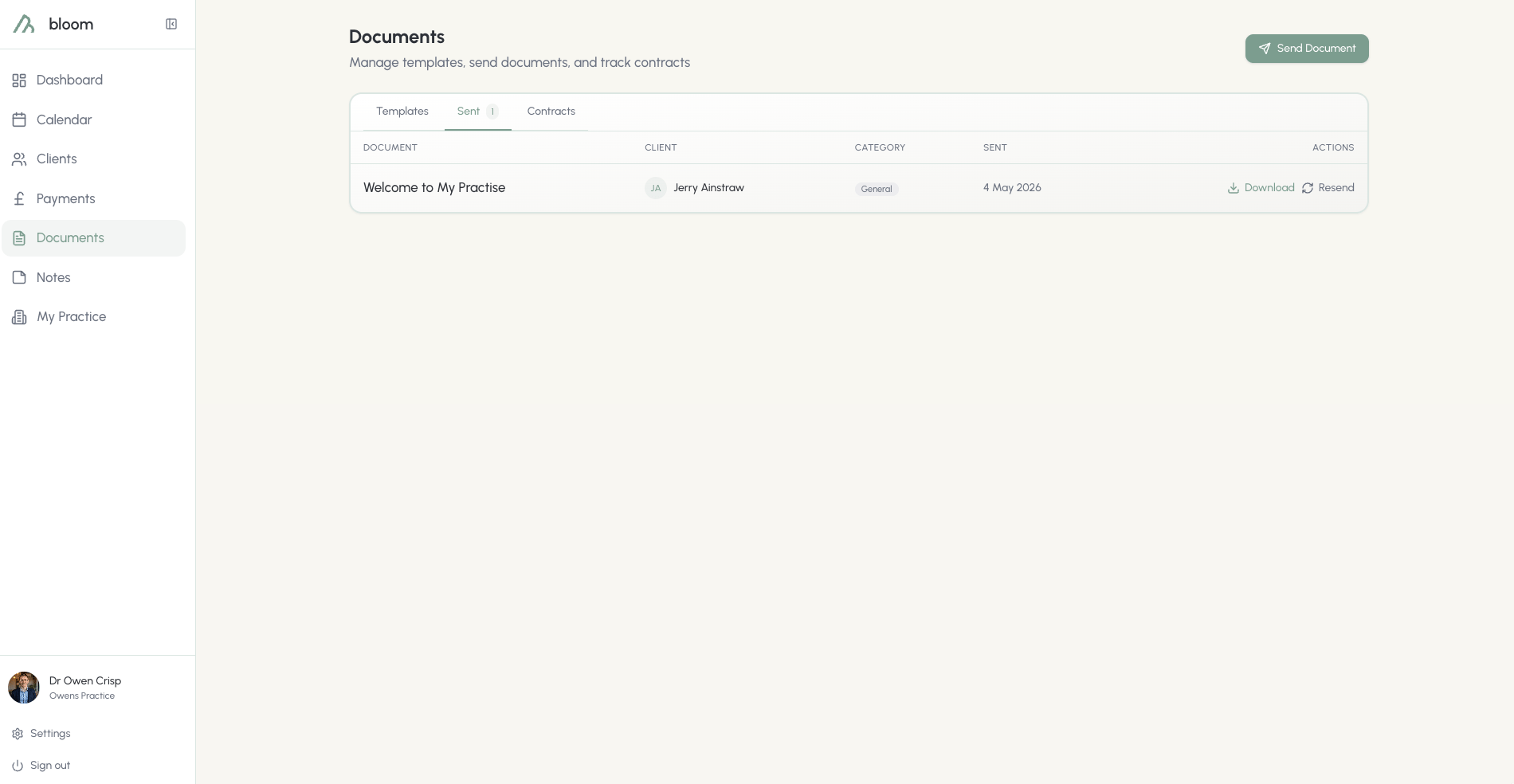
The Documents tab holds every file in your library, excluding contracts, which live in the Contracts tab. Click Add Document to upload a file - attaching it to a client is optional, so you can keep blank forms and reference sheets here too. When you add a document, two switches control what happens:- Attach to a client - the document appears on that client’s file. You can also link it to a specific session.
- Email to client now - the client receives the document by email. Leave this off to keep the document on file without sending anything - useful for signed paper contracts, discharge letters, or psychometric results.
Linking a document to a session
When a client is attached, use Linked Session to connect the document to a specific appointment - for example a contract signed in the first session, a discharge letter from the last, or a psychometric completed that week. Linked documents show the session date on the client’s file, and the appointment shows a paperclip with a count of its documents.Practice documents
The Practice tab holds shared files for your practice - policies, privacy notices, and consent forms. These are for your own reference and are never sent to clients. Create rich-text documents in the editor or upload PDFs.Contracts
The Contracts tab is home to your counselling agreement and any other contracts you write yourself. Every client who goes through onboarding receives the current version of your agreement. Anything else you need signed - a supervision agreement, an online sessions policy, a group contract - you can write and send from here too.Your counselling agreement
Bloom starts you off with a default agreement. Click Edit to make it your own in the editor - your practice details, fees and cancellation terms are filled in for each client automatically. Every save creates a new version, and clients who already signed keep the exact wording they agreed to. New clients receive the current version as part of their onboarding. If you update it later, send the new version to existing clients as described below.Writing your own contracts
Under Your own contracts, click New contract, give it a name and write it in the same editor as your agreement. The same client and practice details are filled in automatically. Each save is a new version. Rename or archive a contract from its menu - archiving stops it being offered for sending, and every signed copy stays on file.Sending a contract
Click Send on the agreement or on any of your contracts. Bloom lists your active clients with where each one stands - signed and on which version, sent but unsigned, or not sent yet - and flags anyone on an Older version. Tick the clients you want, or use Everyone on an older version after you’ve updated the wording, then click Send. You can also send from a client’s profile: choose Send contract from the Actions menu, or click Send contract in the Contracts section of their Documents tab.A client who hasn’t finished onboarding gets their onboarding email again, with the current wording, rather than a separate link.
What your client sees
Your client receives an email with a link to review and sign. They type their full name as their signature, and Bloom emails them a PDF copy for their records. The link stays valid until you send them a newer version; after signing, it simply confirms they’ve signed.Versions and history
The Sent Contracts and Signed Contracts sub-tabs show every copy, which contract it is and which version. Signing details record when and from where it was signed, and every copy can be downloaded as a PDF. Signed copies are never changed or replaced - sending a new version adds a new copy, so you always know who signed what. Signed rows on an older version offer Send latest as a shortcut.