

What you’ll need
Bloom works with any standard authenticator app. If you already use one, you’re ready to go. If not, all of these are free:- Google Authenticator (iOS and Android)
- Microsoft Authenticator (iOS and Android)
- Apple Passwords (built into iPhone, iPad, and Mac)
- 1Password, Authy, or any other app that supports authenticator codes
Turning it on
Head to Settings, then Profile, and find Two-factor authentication on the Security card:
1
Start setup
Select Turn on. Bloom generates a QR code and a setup key that are unique to your account.
2
Scan the QR code
Open your authenticator app, choose to add a new account, and scan the QR code. Can’t scan? Enter the setup key manually instead - it’s shown just below the code.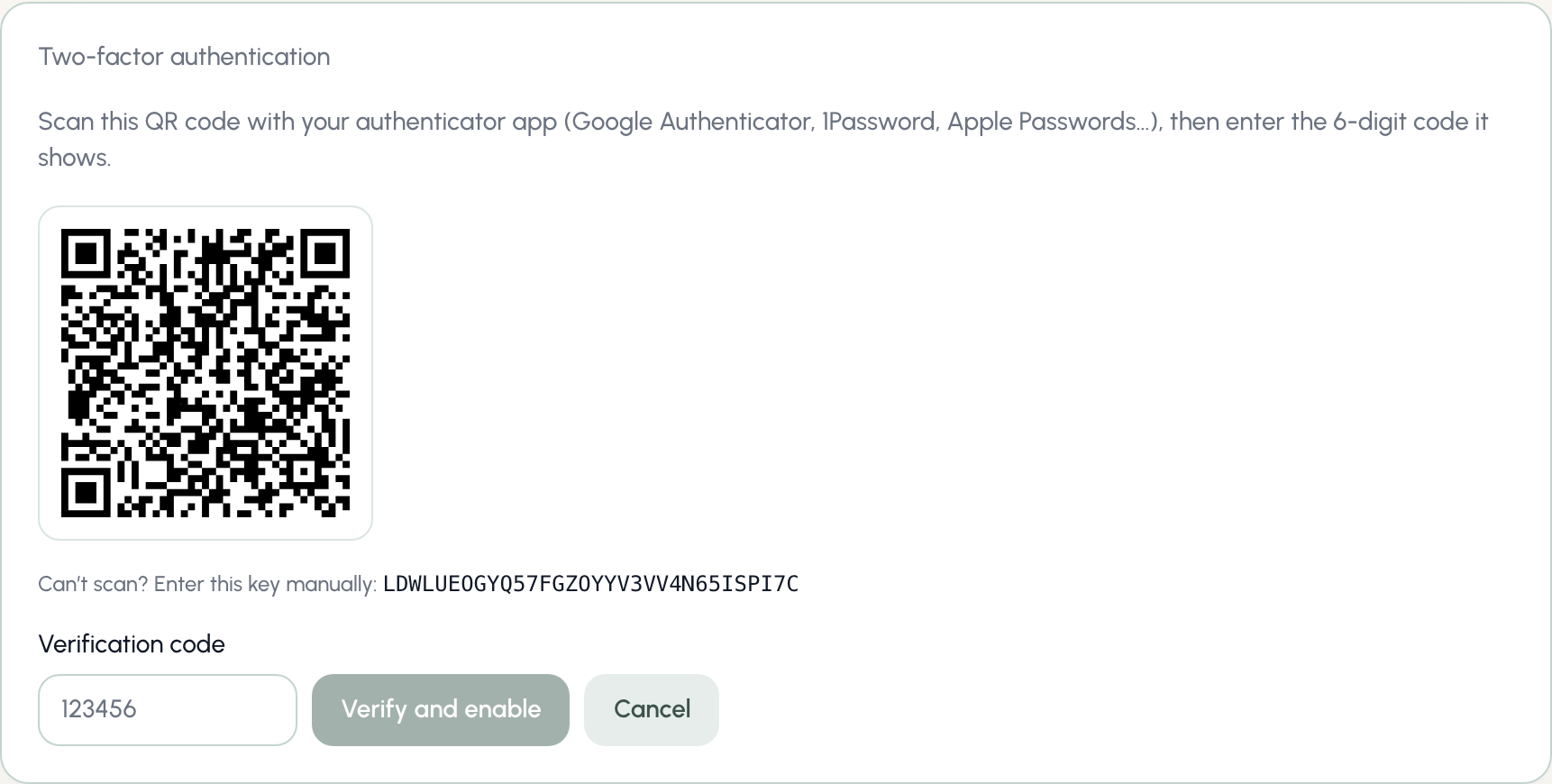
3
Confirm with a code
Your app will now show a 6-digit code for Bloom that changes every 30 seconds. Type it in and select Verify and enable.
4
Save your backup codes
Bloom shows you 8 backup codes, once. Select Copy codes and store them somewhere safe, like a password manager.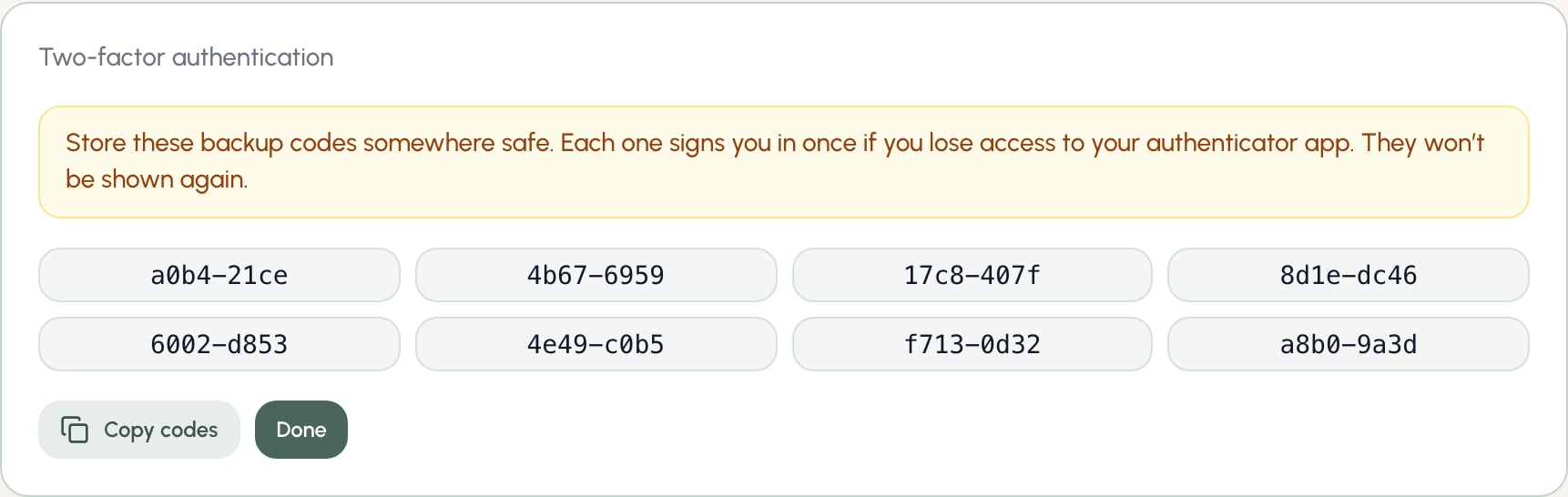

Backup codes
Backup codes are your way back in if you lose access to your authenticator app. A few things to know:- Each code signs you in once, then it stops working.
- They’re shown only at setup - Bloom stores them securely and can’t show them again.
- You can use one anywhere Bloom asks for a verification code, including when turning two-factor authentication off.
Signing in
With two-factor authentication on, signing in takes two steps. Enter your email and password as usual, then Bloom asks for your verification code: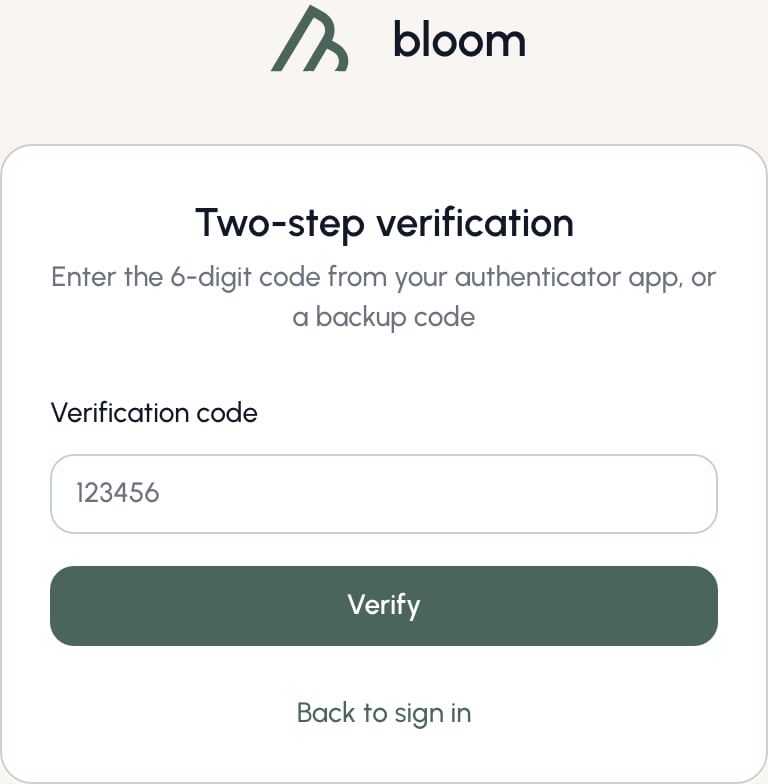
Codes refresh every 30 seconds, and each code works once. If a code is rejected, wait for your app to show the next one and try again.
Turning it off
You can remove two-factor authentication at any time:- Go to Settings, then Profile.
- On the Security card, next to Two-factor authentication, select Turn off.
- Enter a code from your authenticator app (or a backup code) to confirm.
Lost your device?
- Have a backup code? Use it to sign in, then disable and re-enable two-factor authentication with your new device.
- Out of backup codes? Contact us and we’ll verify your identity and remove two-factor authentication from your account so you can set it up again.